

Have you ever taken a perfect group photo, only to realize someone blinked at the wrong moment? Closed eyes are a persistent headache in portrait photography, especially during high-pressure events, weddings, or high-volume headshot editing.
Learning how to open eyes in Photoshop can rescue these moments. However, for those managing a professional photography workflow, manual fixes are often too slow. In this guide, we’ll cover the classic Photoshop method and a high-speed AI photo editing alternative with Evoto.
How to Open Eyes in Photoshop: Step-by-Step Guide
Photoshop remains a professional AI photo editing software staple for manual control. The standard photo editor workflow involves “eye transplants” from a reference image.
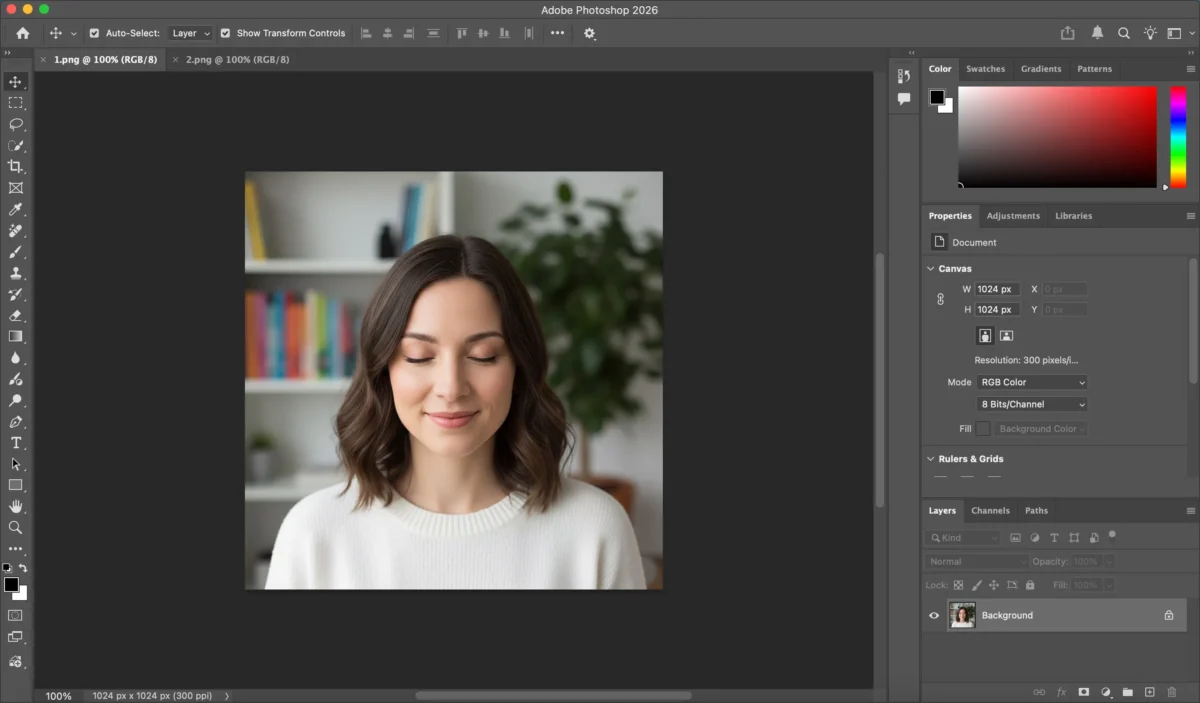
Step 1: Open Both Images
Open the photo with closed eyes and another photo of the same person where their eyes are open.
Go to File → Open and load both images into Photoshop.
Step 2: Select the Open Eyes
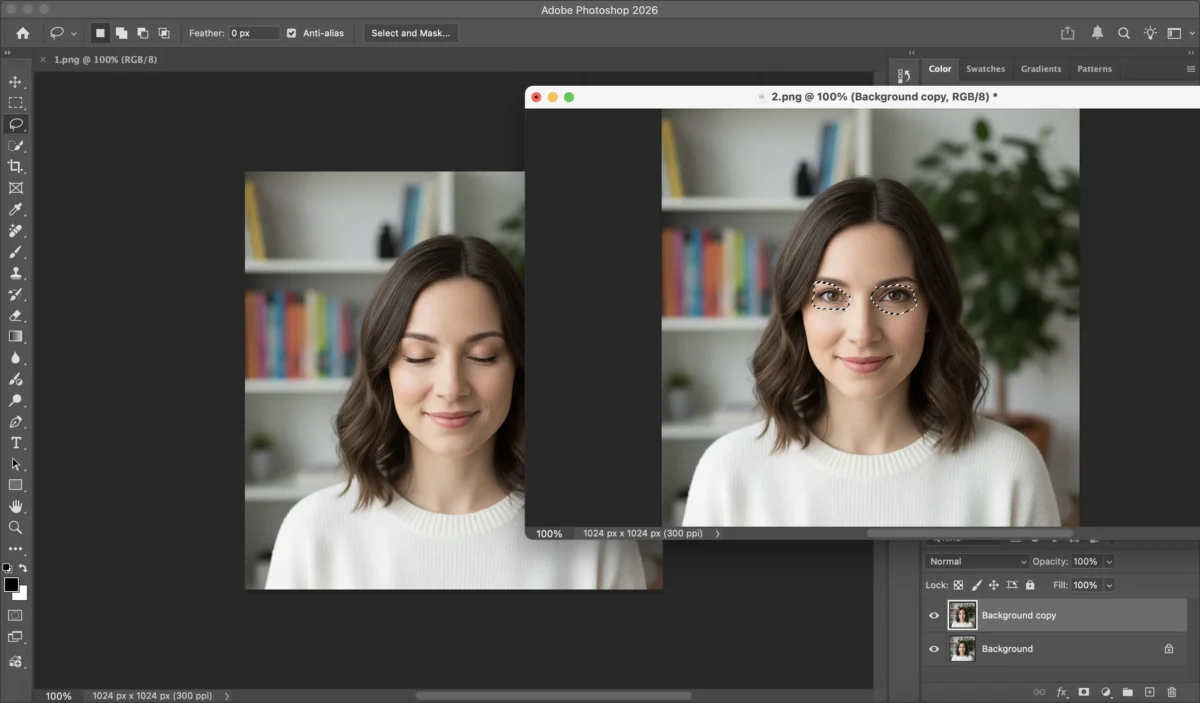
In the photo with open eyes:
- Use the Lasso Tool or Elliptical Marquee Tool.
- Carefully select the eye area.
- Press Ctrl/Cmd + C to copy the selection.
Step 3: Paste and Position
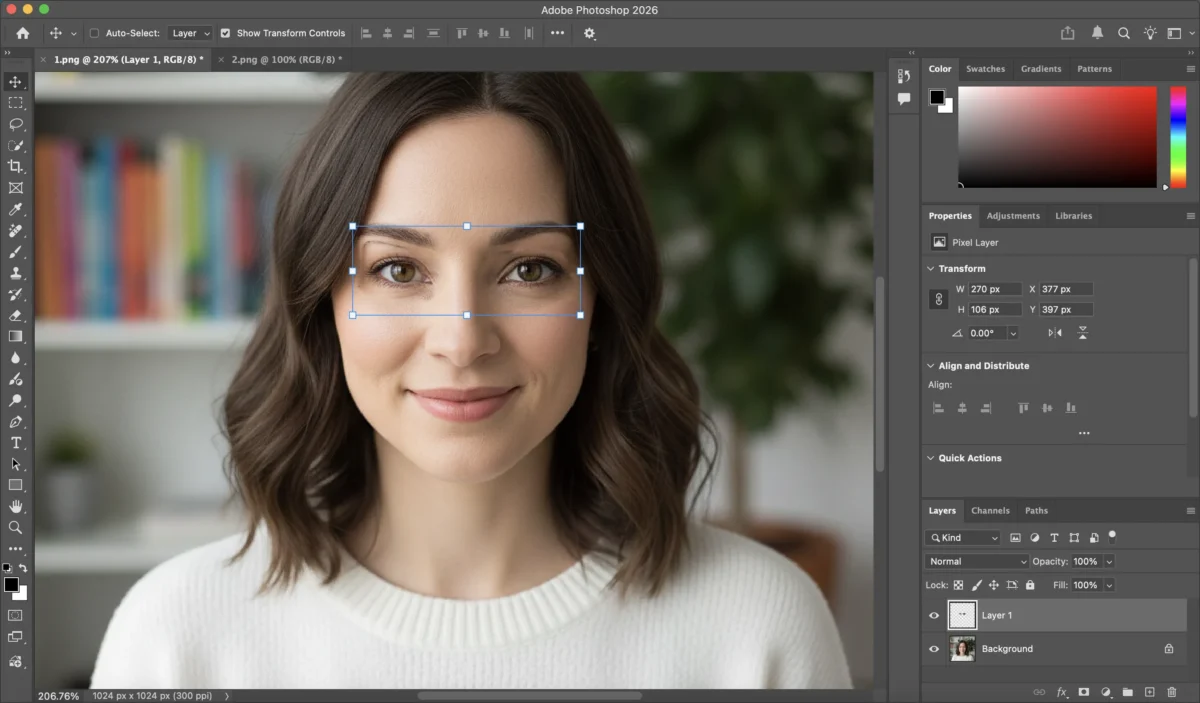
- Switch to the image with closed eyes.
- Press Ctrl/Cmd + V to paste the copied eyes into the target image.
- Use Free Transform (Ctrl/Cmd + T) to resize and position the eyes correctly.
Step 4: Blend the Edges
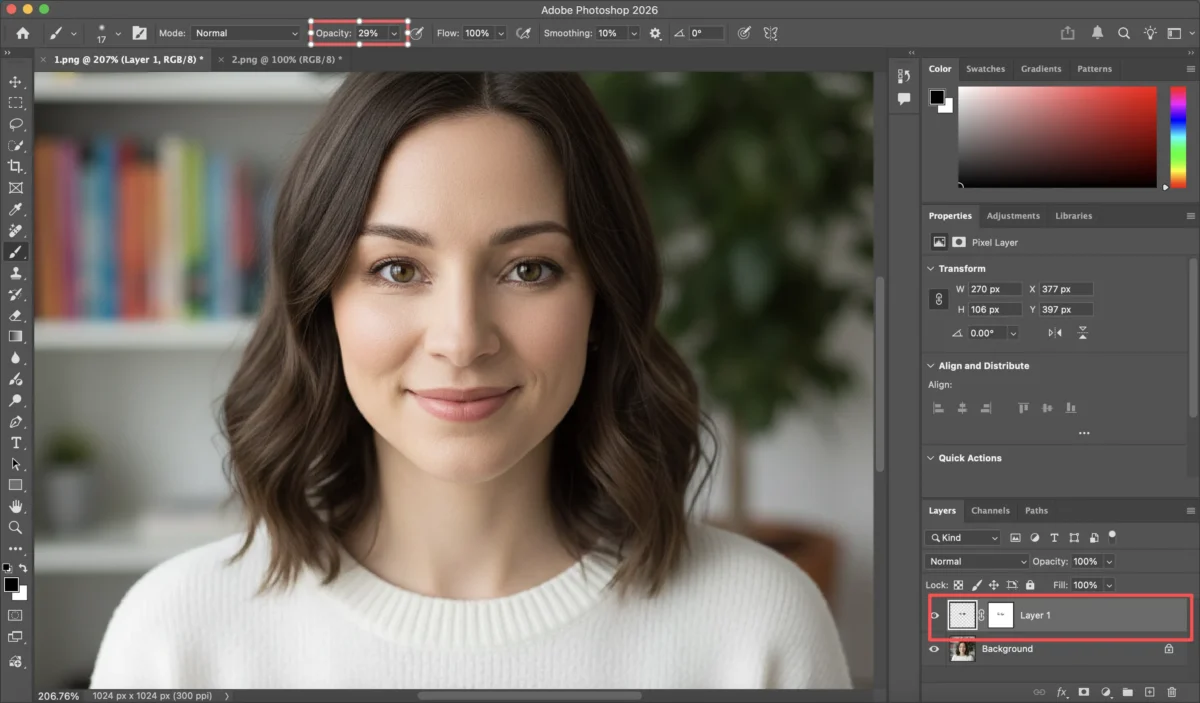
- Add a Layer Mask to the pasted eye layer.
- Use a soft brush at low opacity.
- Gently paint around the edges to blend the skin texture, new eyes naturally into the face.
Step 5: AI Color Correction (Manual)
To match the skin tone and lighting:
- Go to Image → Adjustments → Color Balance or Hue/Saturation.
- Fine-tune brightness, contrast, and color until the eyes look natural.
- Zoom out to check the overall realism.
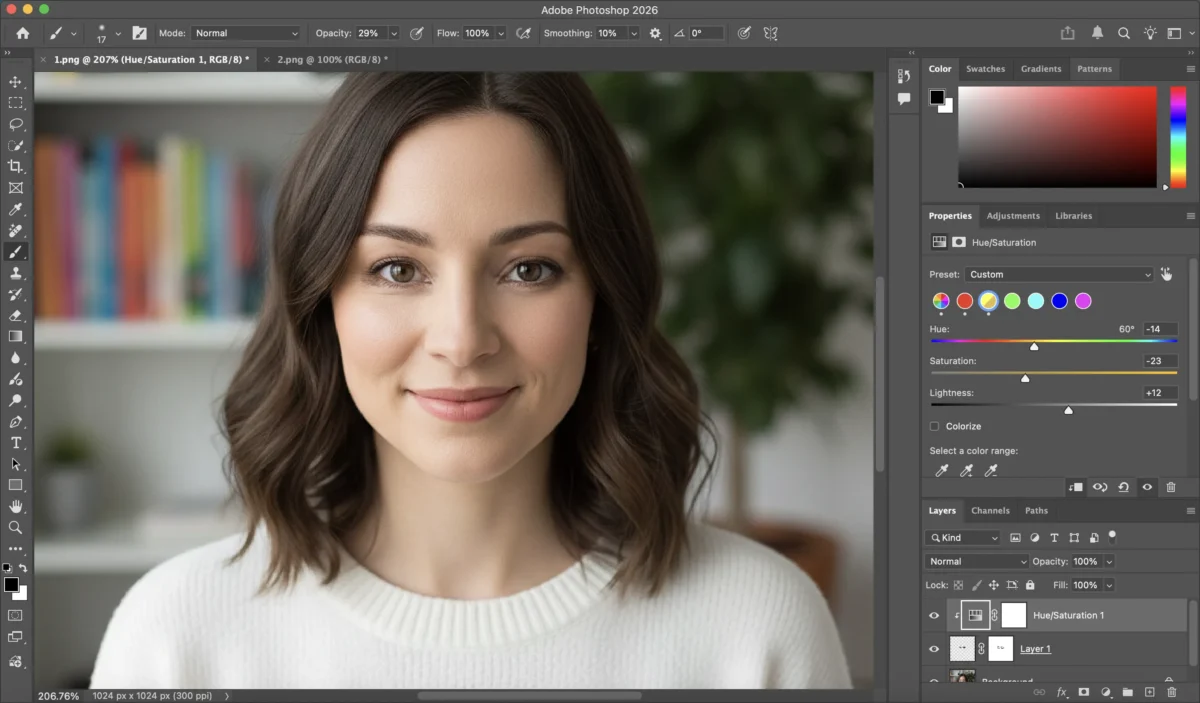
This is the standard manual workflow for how to open eyes in Photoshop. While effective, it requires a suitable reference photo and careful blending.
Limitations of Photoshop for Opening Eyes
Although Photoshop is a powerful face editor, it faces significant hurdles in a modern all-in-one photo workflow:
1. Requires Precise References:
You must have another image where the subject’s eyes are open.
2. Time-consuming process
Manual selection, alignment, and blending can take several minutes per photo.
3. Inconsistent Skin Tones
Matching the skin-tone retouching between two different frames is difficult.
4. Not Ideal for Batches
It is impossible to batch retouch portrait photos when every eye fix requires custom manual masking.
How Evoto Simplifies the “Open Eyes” Workflow
As the best AI photo editor 2026, Evoto has revolutionized how photographers handle blinks. Instead of tedious manual cutting, Evoto uses high-performance AI to synthesize natural eyes that match the original lighting and expression.
Try the online AI Open Eyes tool:


Step-by-Step: The Evoto AI Advantage
1. Import Your Photo
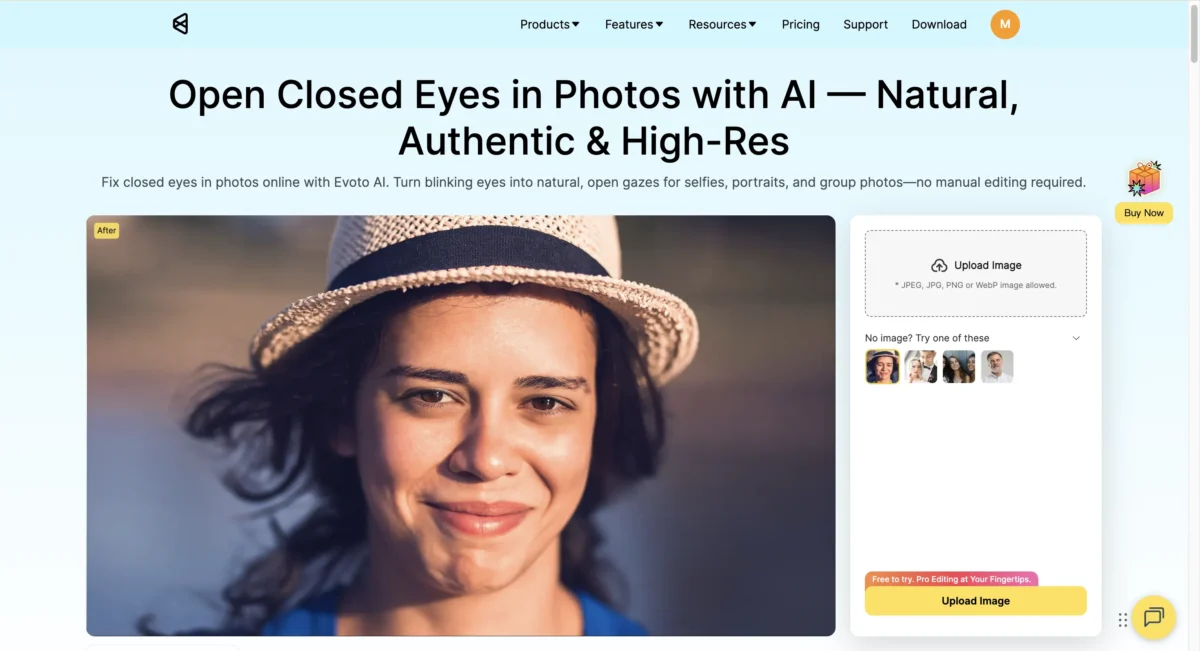
2. Upload the photo with closed eyes.
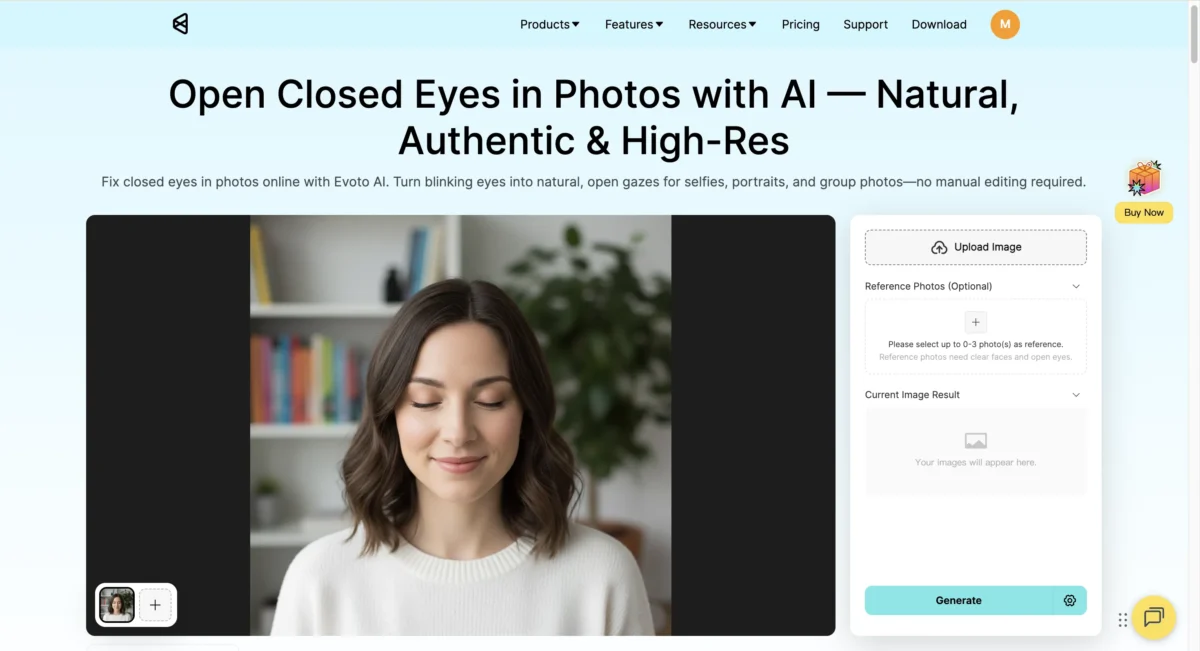
3. Upload Reference Photos: Provide up to 3 images. Evoto’s AI analyzes these to understand the subject’s unique eye shape and iris detail.
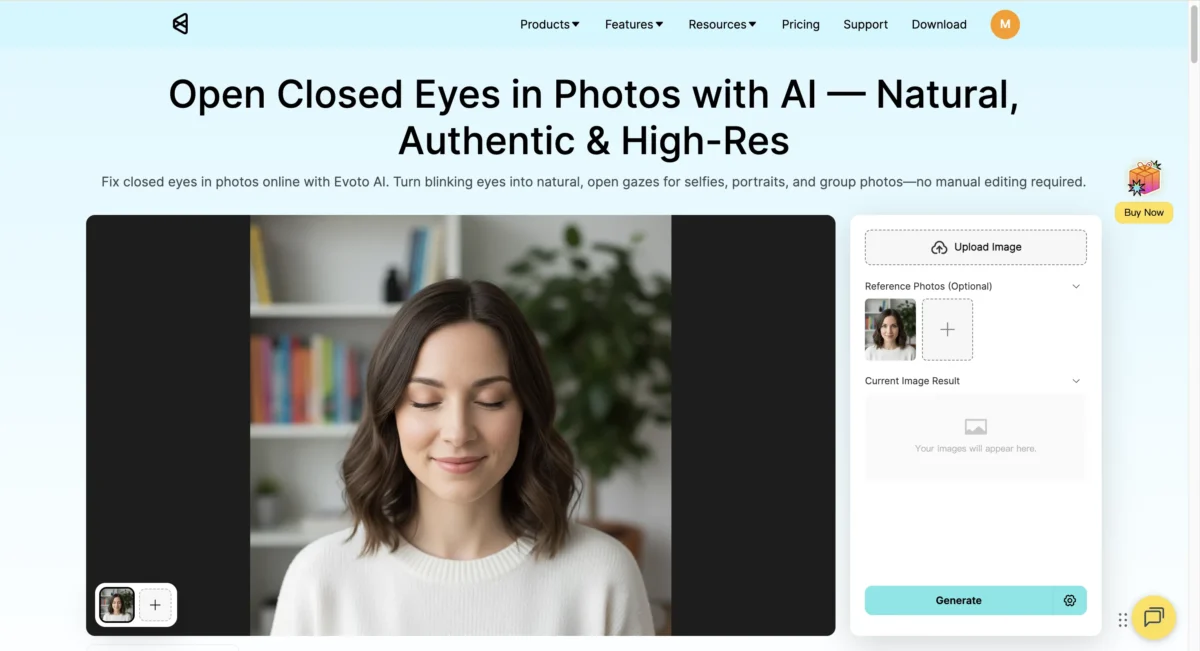
4. AI-Automated Generation: Click generate. Evoto’s AI face retouching engine automatically handles the blending, skin softening, and light matching.
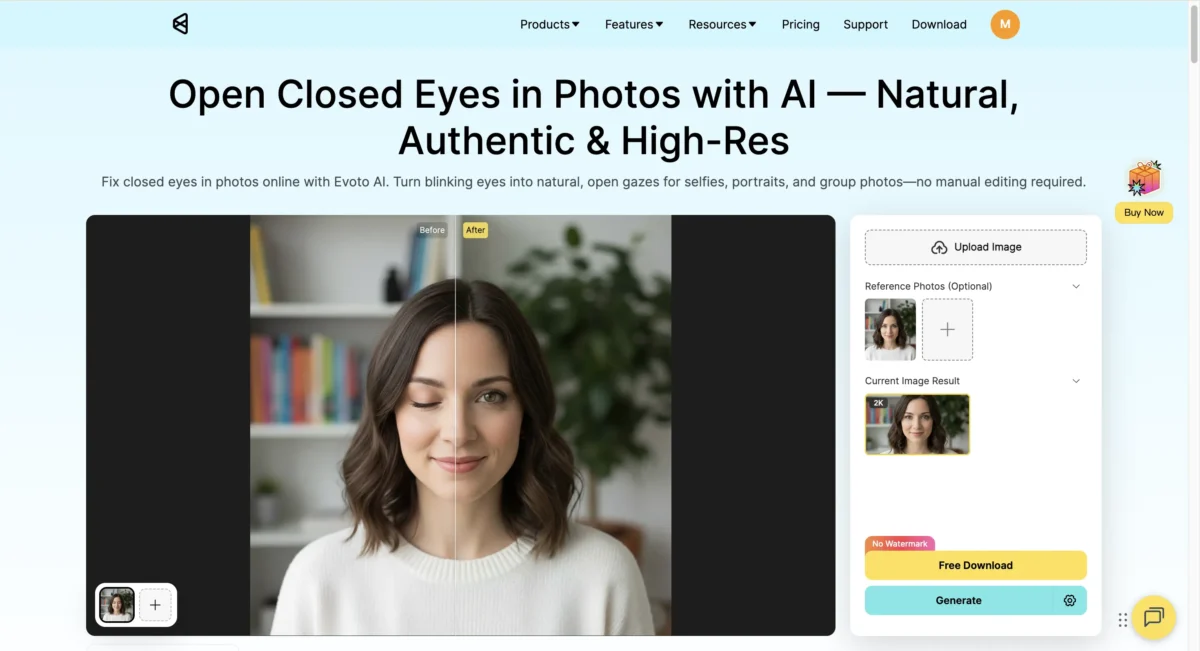
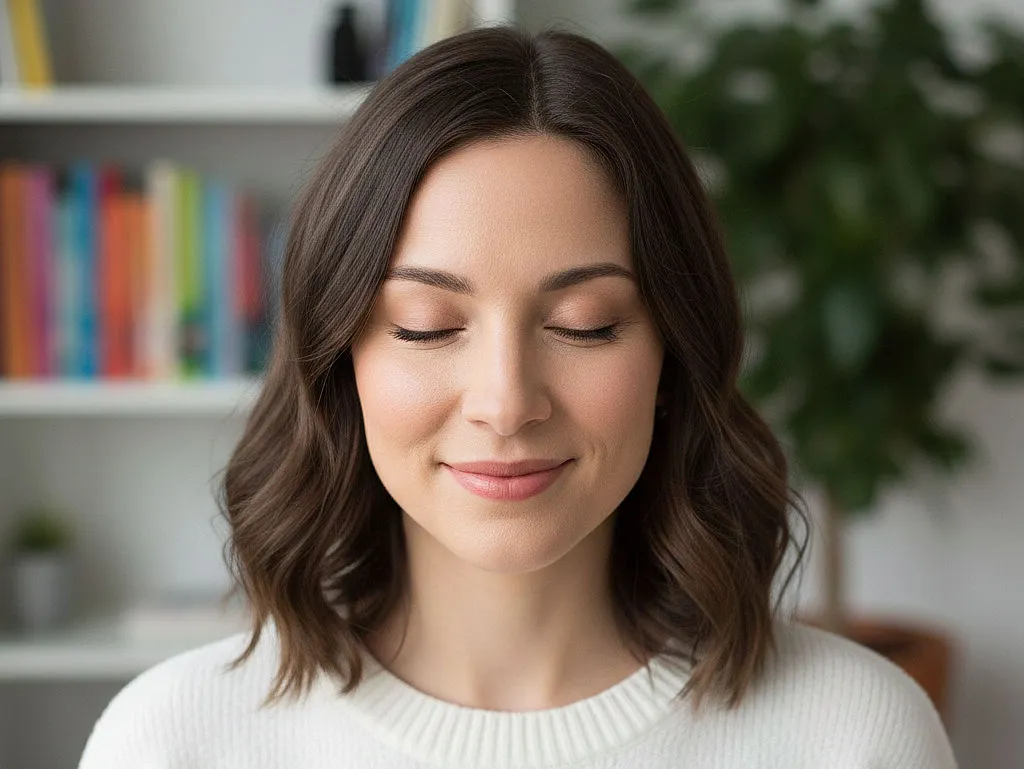
Evoto’s AI analyzes facial features, lighting, and expressions to create natural-looking open eyes automatically. The process takes just a few minutes and doesn’t require advanced editing skills.

Beyond Opening Eyes: The All-in-One Portrait Suite
Evoto doesn’t just fix blinks; it optimizes the entire portrait:
- Digital Makeup: Use the portrait editor to remove blemishes and smooth skin instantly.
- Color Grading: Apply AI color correction across the whole set to ensure the new eyes match the environment.
- Background Magic: If the shot was taken in a messy area, use the AI background remover or AI studio backdrop to clean up the scene.
Further Reading: How to Brighten Eyes in Photoshop
Photoshop vs. Evoto: Which Is Better for Opening Eyes in Photos? Feature Comparison
| Feature | Photoshop | Evoto |
|---|---|---|
| Workflow | Manual “Cut & Paste” | AI-automated generation |
| Skill required | Medium to advanced | Beginner-friendly |
| Time per photo | 5–15 minutes | High-speed (1–3 minutes) |
| Batch processing | Difficult | Batch AI portrait retouching |
| Natural eye generation | Requires manual blending | AI-optimized (Preserves texture) |
| Reference images | Required | Up to 3 references supported |
| Ease of use | Complex interface | Simple web-based steps |
| Overall Workflow | Fragmented tools | All-in-one photo workflow |
Bottom line:
Photoshop gives full manual control, but the process is slower and more complex. Evoto offers a faster, AI-driven approach that delivers natural results with minimal effort.


Powerful AI Photo Editor
Conclusion
While knowing how to open eyes in Photoshop is a useful skill, it is no longer the most efficient photography workflow for pros.
For a faster, more consistent result, Evoto offers the best AI software for portrait retouching. It allows you to batch retouch high-volume galleries while preserving the natural detail that high-end photo clients demand. Stop wasting hours on manual masking—switch to the fastest AI photo editing software today.
Try Evoto AI Photo Editor
Retouch photos with Evoto AI and make your photos best! Available on Windows, MacOS and iPadOS.



