

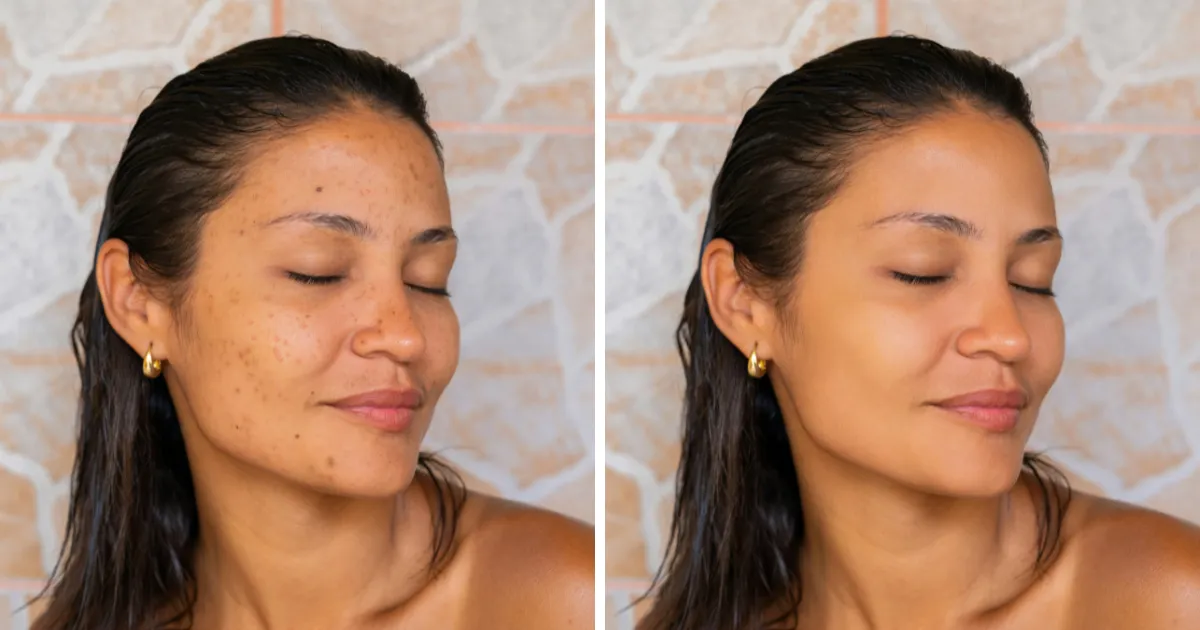
Blemishes are a common issue in portrait photography, whether it’s acne, scars, or uneven skin tone. Learning how to remove blemishes in Photoshop allows you to create polished, professional-looking photos while keeping the skin looking natural. In this guide, we’ll walk through Photoshop’s manual workflow, highlight its limitations, and show how Evoto AI can simplify the process with AI-powered tools.
What Is Blemish Removal in Photo Editing?
Blemish removal is a photo retouching technique aimed at reducing or eliminating skin imperfections. The goal is to smooth out unwanted spots, redness, or marks while preserving the natural texture and features of the skin.
Good blemish removal should:
- Even out skin tone and reduce distracting spots
- Keep natural skin texture intact
- Maintain the subject’s facial features and expression
- Avoid over-retouching that creates an unnatural “plastic” look
In short, blemish removal improves the visual appeal of portraits while keeping the skin looking authentic.
How to Remove Blemishes in Photoshop (Step-by-Step)
Photoshop provides several tools for effective blemish removal. One widely used method is using the Spot Healing Brush, which is ideal for small imperfections.
Step 1: Open Your Image
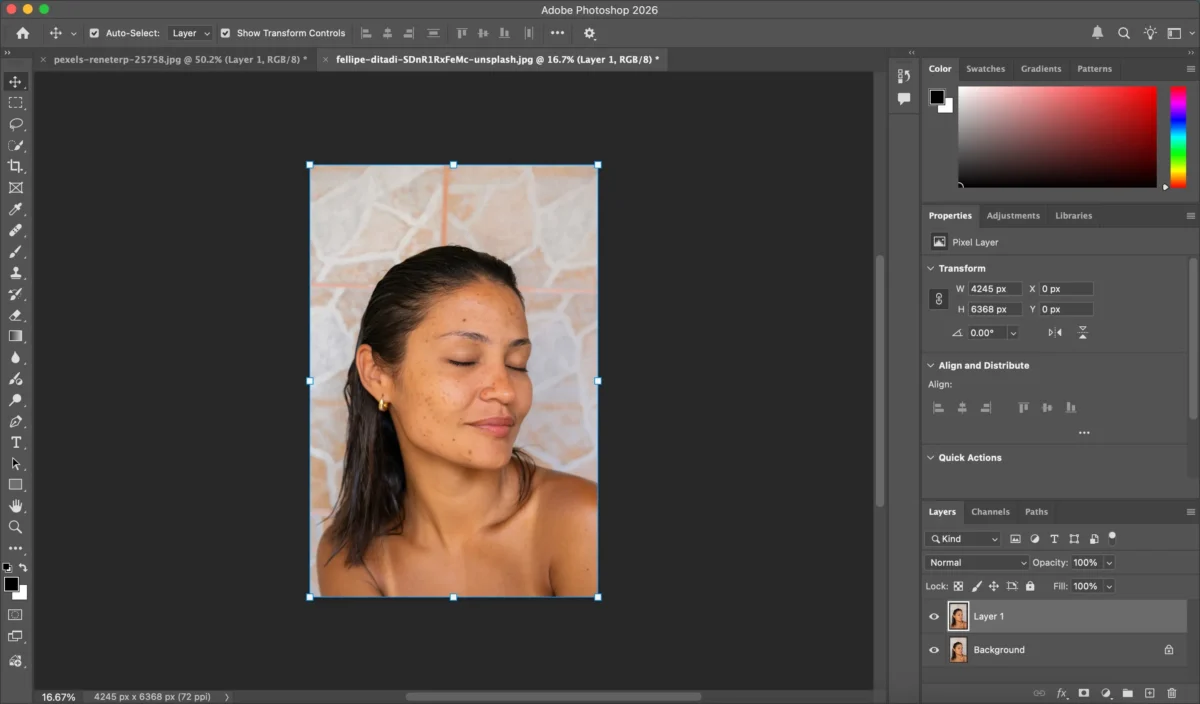
Open your portrait in Photoshop. Always work non-destructively by duplicating the background layer (Ctrl+J / Cmd+J). This allows you to make edits without affecting the original photo.
Step 2: Select the Spot Healing Brush Tool
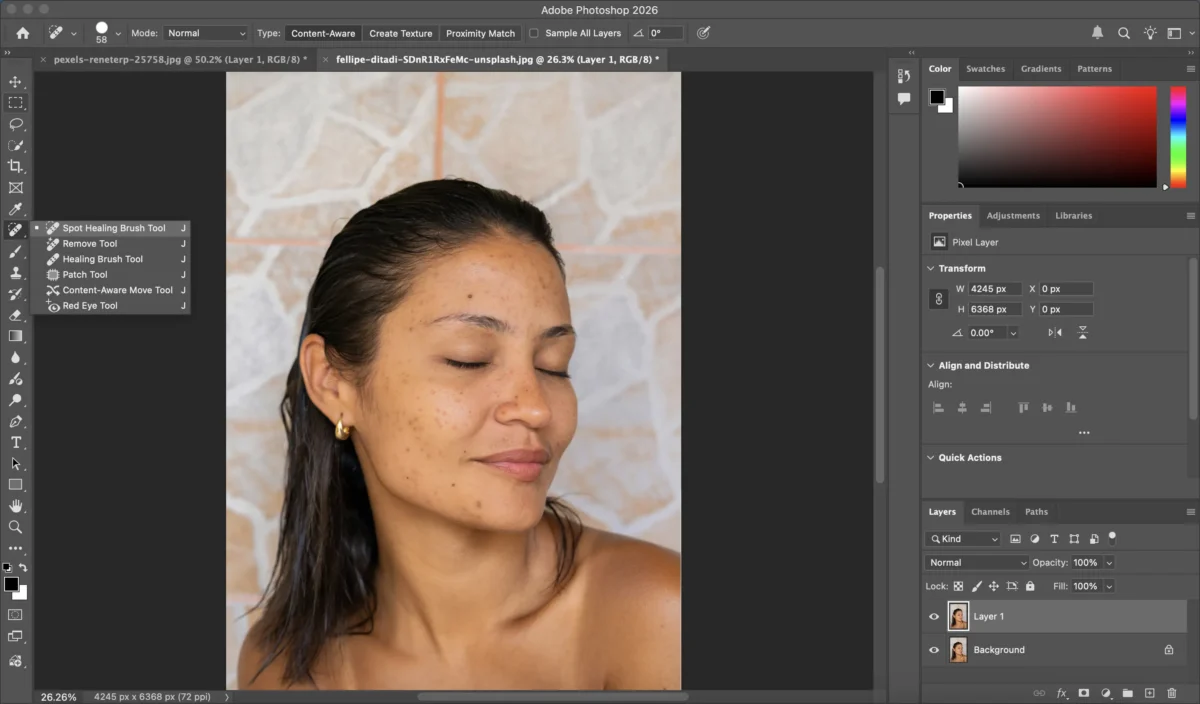
Go to the Spot Healing Brush Tool in the toolbar (J shortcut). Ensure the brush size is slightly larger than the blemish you want to remove.
Step 3: Remove Blemishes
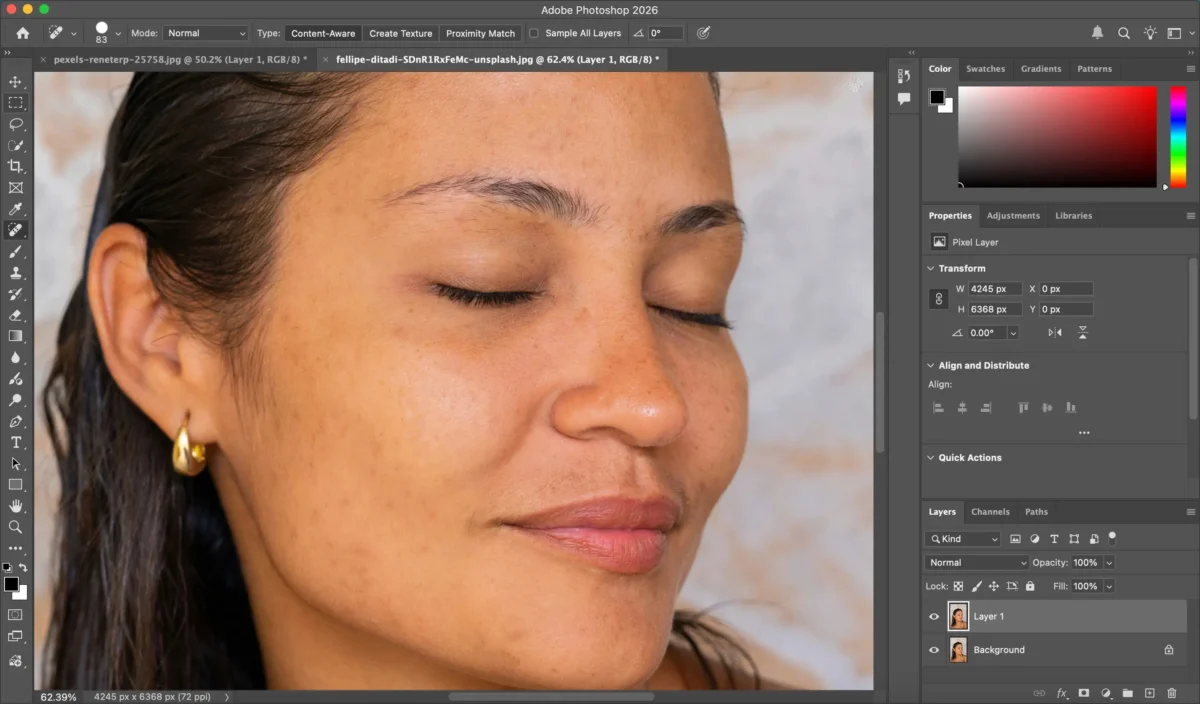
Click directly on blemishes, acne spots, or minor skin imperfections. Photoshop automatically samples nearby skin texture to replace the blemish with matching tones.
Tips:
- Zoom in for precision
- Adjust brush hardness and size depending on the blemish area
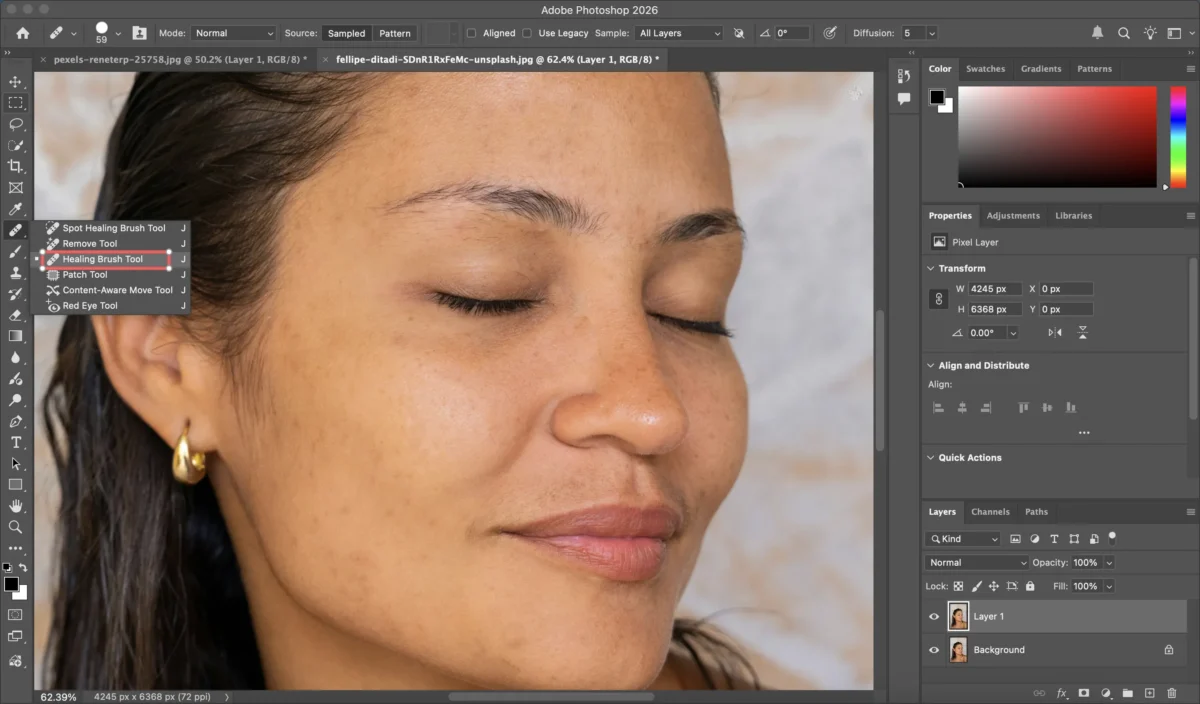
Step 4: Refine with the Healing Brush Tool (Optional)
For larger or more complex blemishes, use the Healing Brush Tool, which allows you to sample specific areas of clean skin and paint over imperfections.
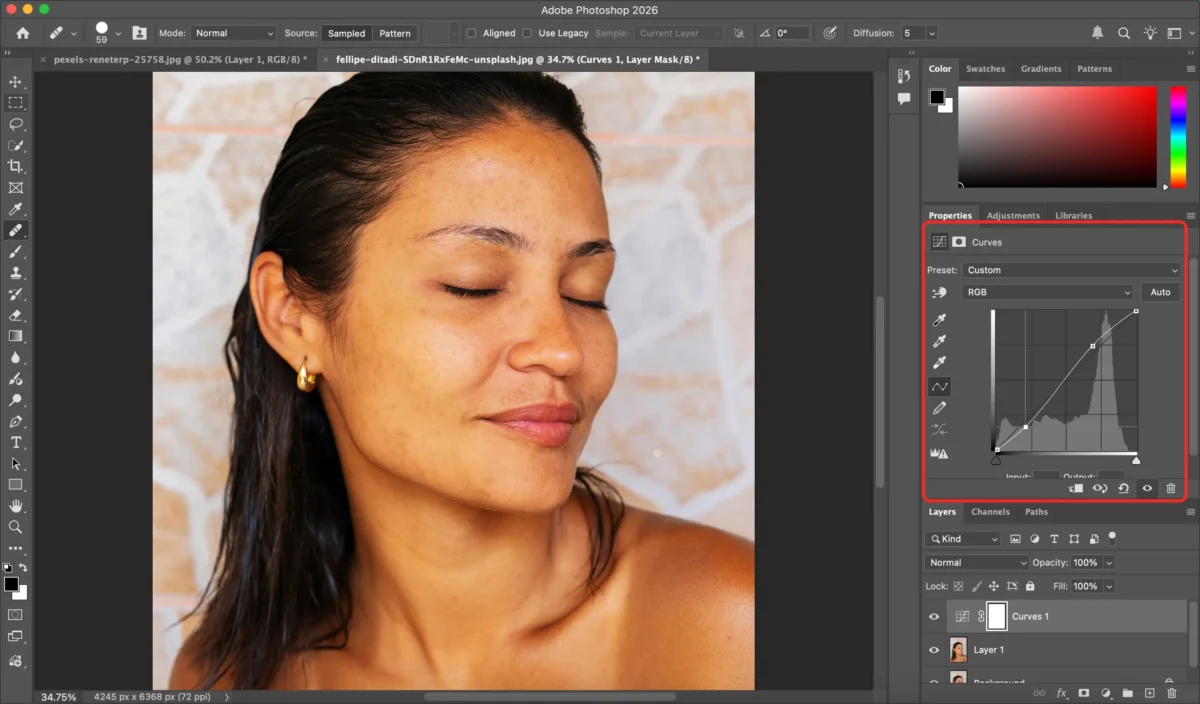
Step 5: Final Touches
- Adjust skin tone and brightness using Curves or Brightness/Contrast adjustments.
- Apply Dodge & Burn subtly to maintain natural highlights and shadows.
- Check the overall skin texture to avoid over-smoothing.
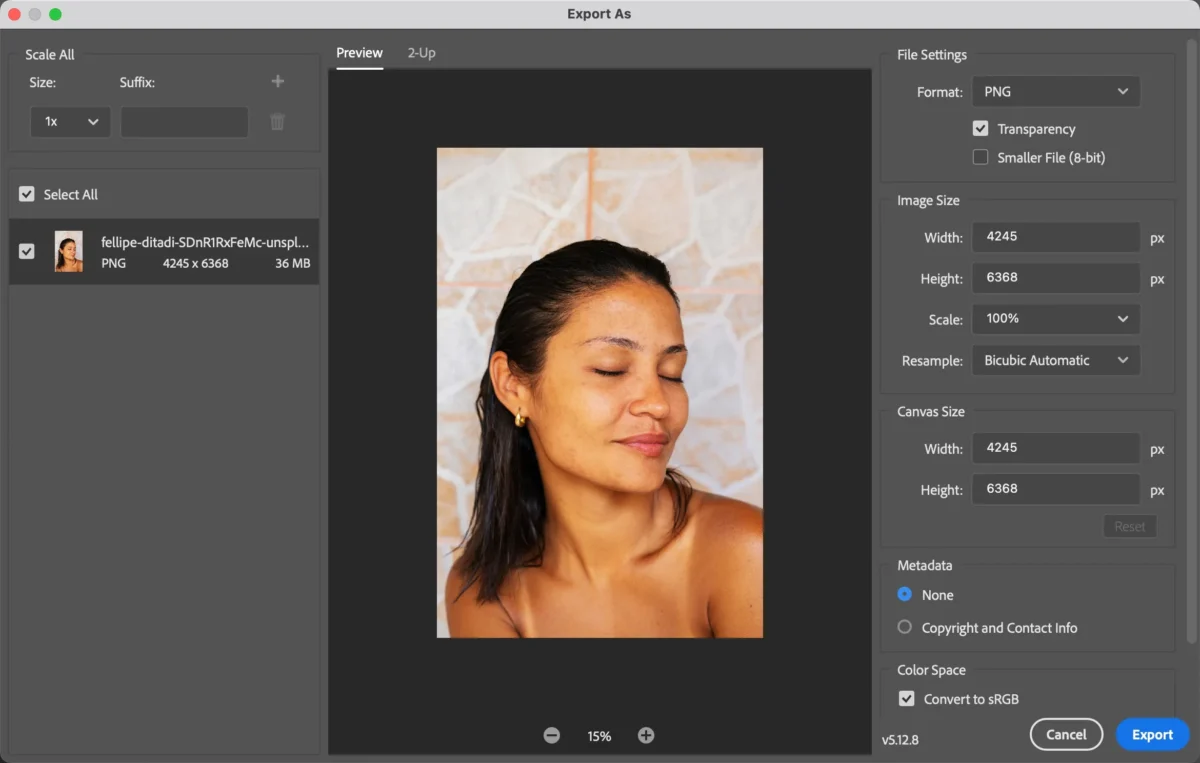
Step 6: Export Your Image
Once satisfied, export your image in the desired format for web or print.
Photoshop gives you full control over blemish removal, but it requires time, patience, and attention to detail.
Limitations of Removing Blemishes in Photoshop
While Photoshop is powerful, manual blemish removal has several drawbacks:
- Steep learning curve for beginners
- Time-consuming for multiple blemishes or high-volume editing
- Easy to over-smooth and lose skin texture
- Difficult to maintain consistency across a batch of images
For photographers editing dozens of portraits, these limitations can slow down workflow significantly.
How Evoto AI Simplifies Blemish Removal
Evoto AI provides a faster, simpler alternative for blemish removal. Its AI-powered tools automatically detect and correct skin imperfections while maintaining a natural look.


Powerful AI Photo Editor
Step 1: Import the Image
Upload your photo to Evoto AI. The interface is simple and beginner-friendly.
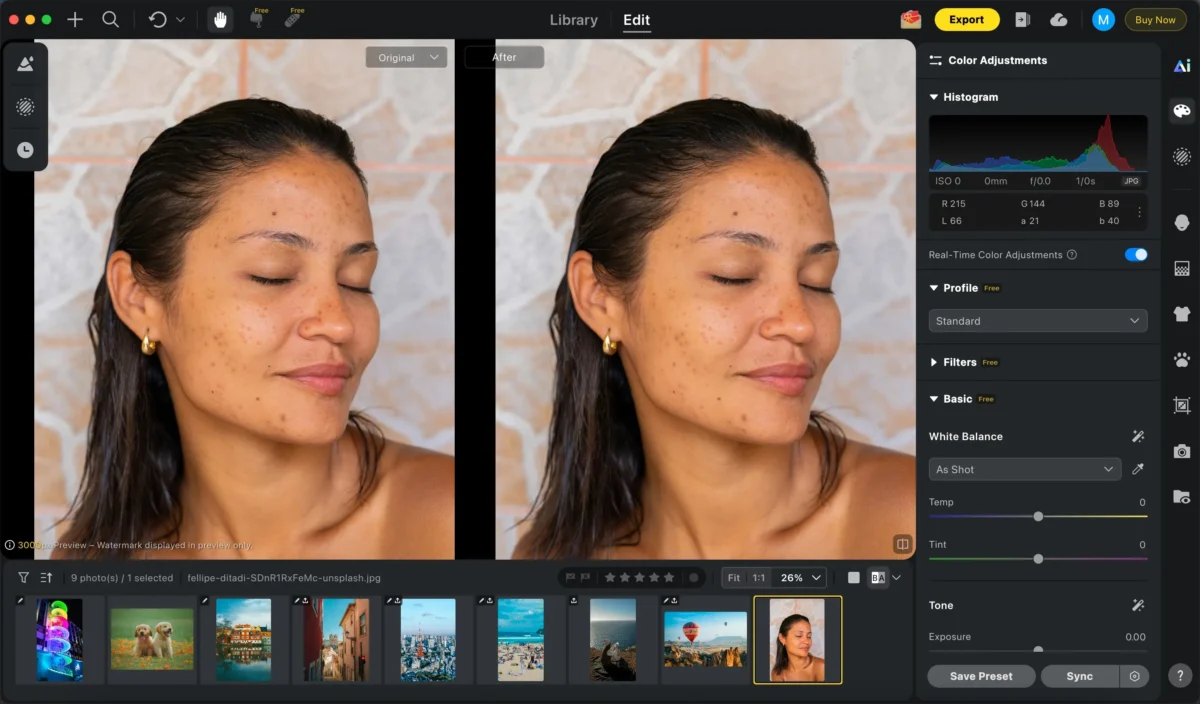
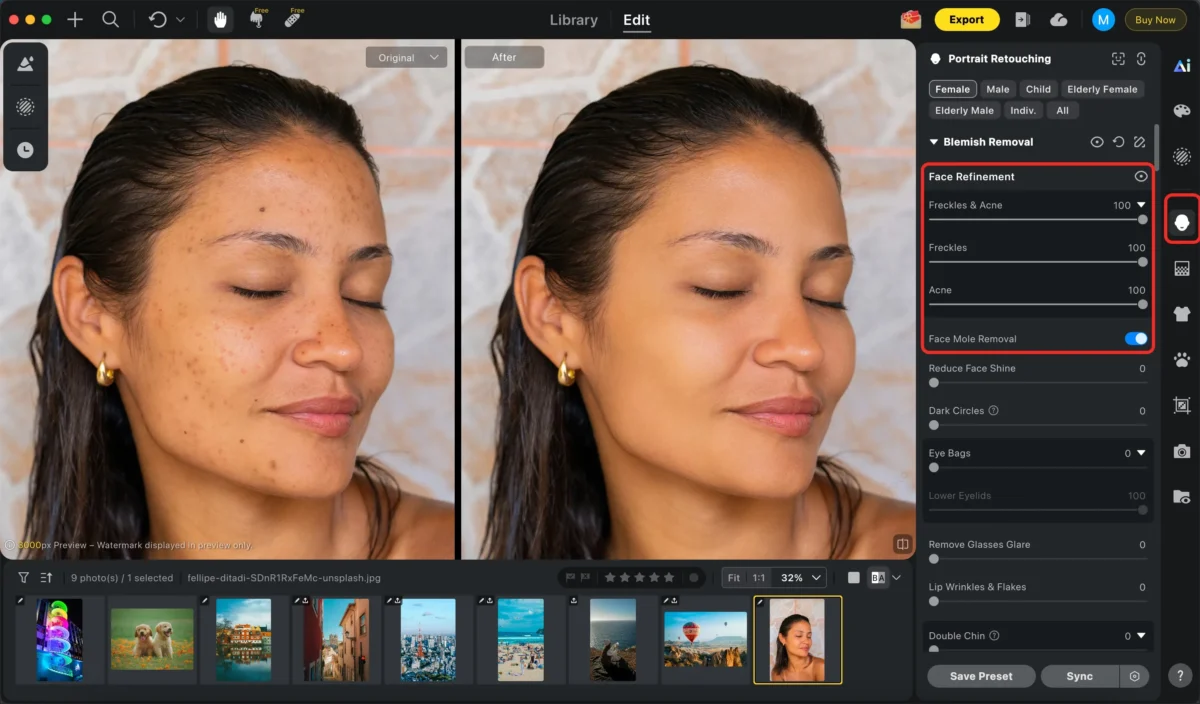
Step 2: Use the Blemish Removal Tool
Navigate to the “Blemish Removal” tool. Artificial intelligence will identify skin blemishes; use the slider to control the intensity of smoothing and repair.
Step 3: Optional Enhancements
You can also:
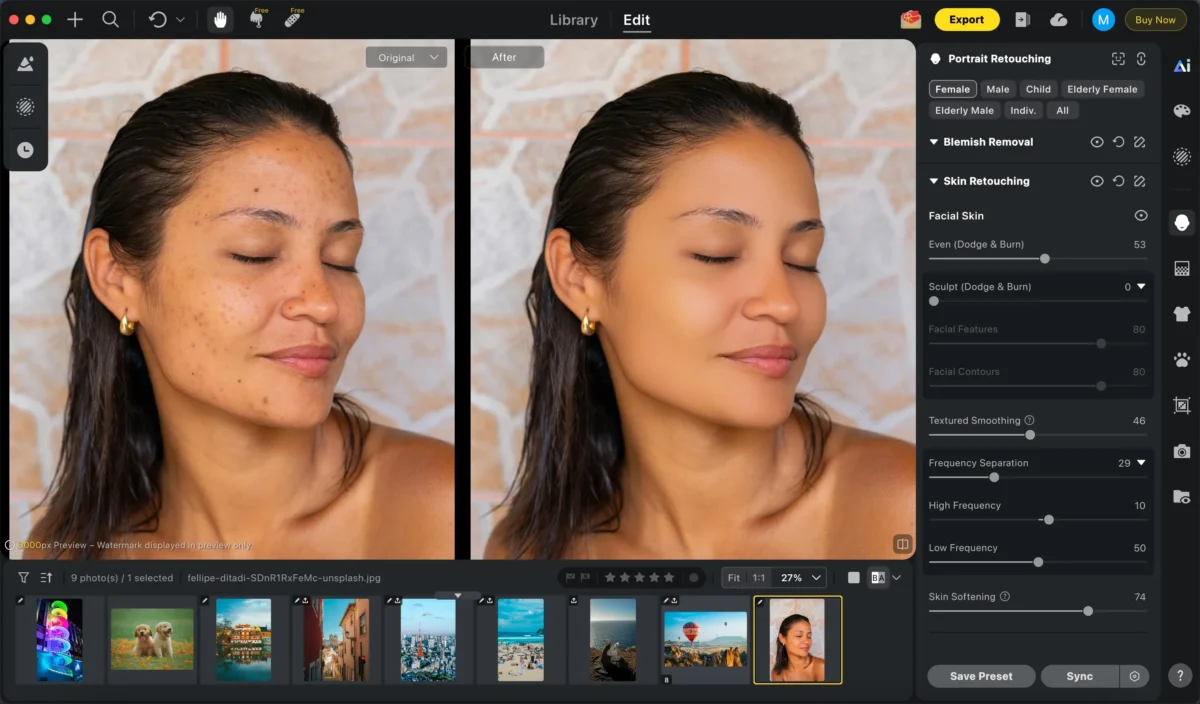
Smooth skin:Instantly smooth skin texture while preserving natural details like pores and contours, creating clean and realistic-looking portraits.
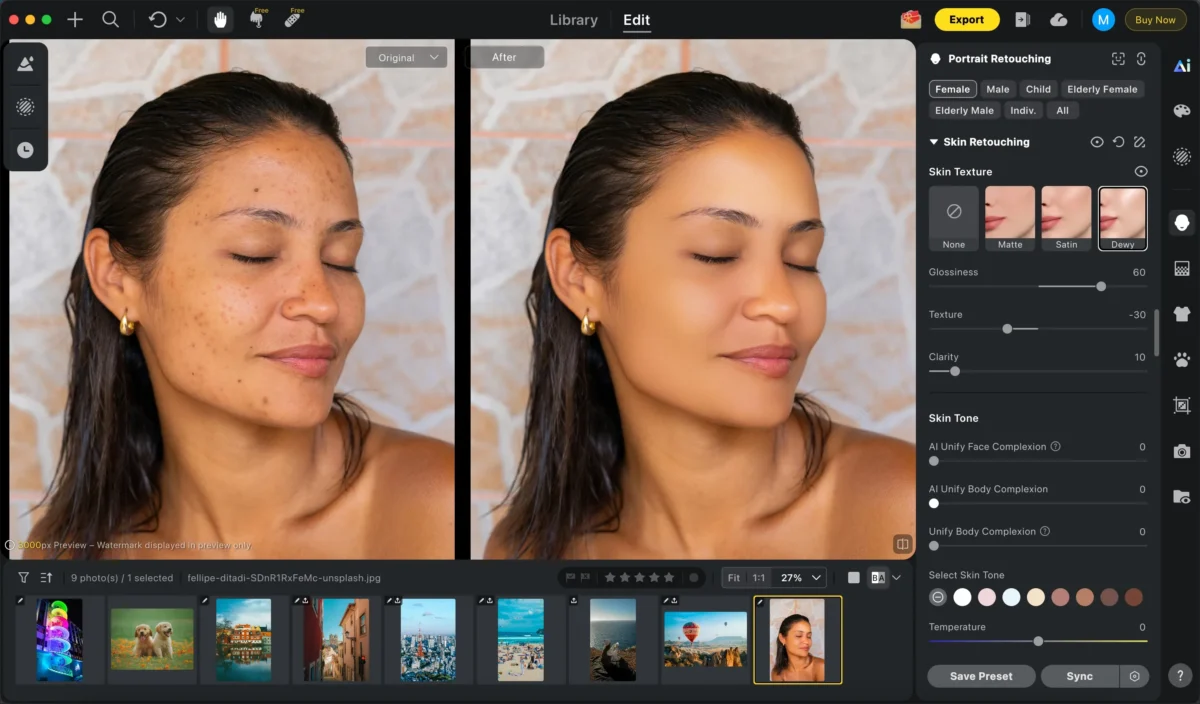
Add skin texture:Enhance portraits by introducing natural skin texture, bringing back realistic detail for a lifelike and professional look. Perfect for balancing overly smooth edits while maintaining authenticity.
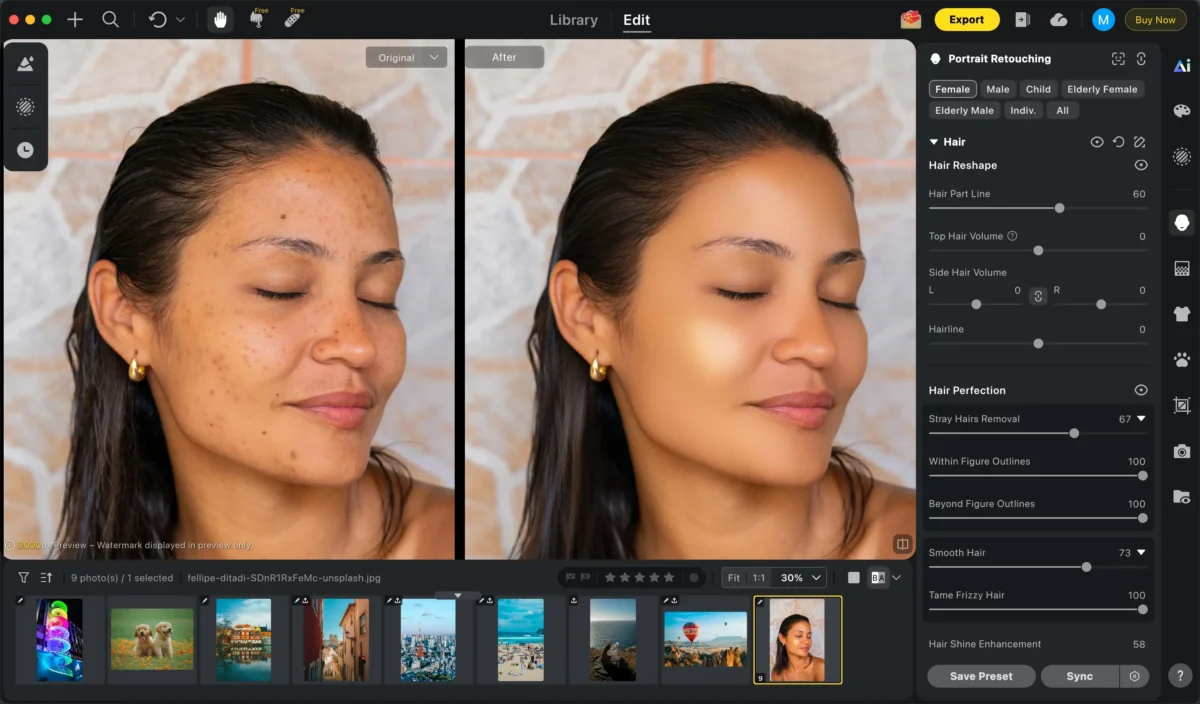
Edit hair:Easily refine hair appearance by smoothing flyaways, enhancing volume, or adjusting hair color while keeping strands natural and detailed
These tools work seamlessly together to create a natural, professional finish.
Step 4: Export
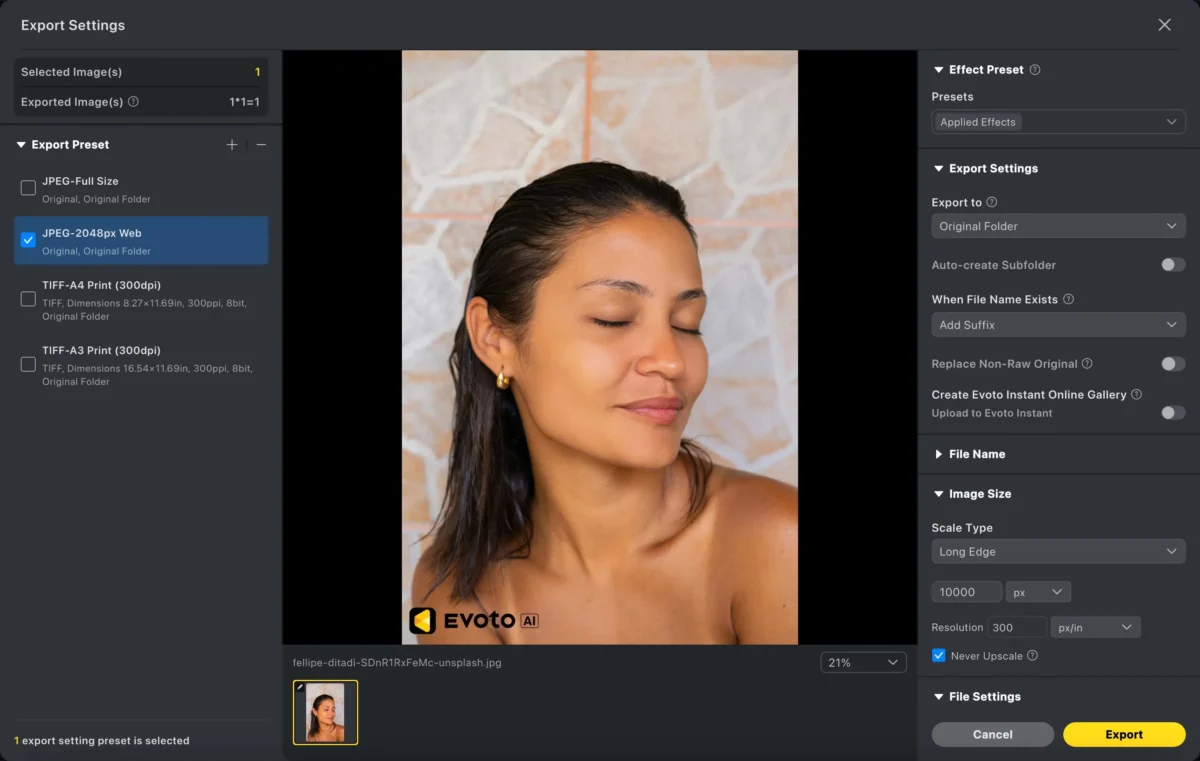
Export the final image in high resolution. Evoto AI also supports batch editing, making it ideal for high-volume portrait work.
Photoshop vs Evoto AI: Which Is Better for Removing Blemishes?
| Feature | Photoshop | Evoto AI |
|---|---|---|
| Learning Curve | Steep | Beginner-friendly |
| Editing Speed | Manual & slow | Fast with AI |
| Skin Detection | Manual selection | Automatic AI detection |
| Consistency | Hard across batches | Easy batch processing |
| Best For | Detailed manual retouching | Fast, professional results |
Photoshop is perfect for precise, hands-on retouching, giving you full creative control. Evoto AI, on the other hand, is better suited for speed, consistency, and maintaining natural skin texture—especially when editing many portraits.
Powerful AI Photo Editor
Conclusion
Learning how to remove blemishes in Photoshop is a valuable skill for professional photo retouching. Manual editing gives full control but can be time-consuming and requires practice.
Evoto AI offers an intuitive, fast, and beginner-friendly alternative for achieving smooth, natural-looking skin. Whether you’re a professional photographer, content creator, or casual editor, combining traditional Photoshop techniques with AI tools can help you create polished portraits efficiently.
Try Evoto AI Photo Editor
Retouch photos with Evoto AI and make your photos best! Available on Windows, MacOS and iPadOS.



