

Presets are an essential tool for photographers, allowing them to save time and maintain consistency in their edits. In Lightroom, saving presets can significantly speed up your workflow. However, if you’re looking for a faster, more intuitive solution, Evoto might be the perfect alternative. In this guide, we’ll walk you through the steps on how to save preset in Lightroom and show you how Evoto can simplify the process even more.
What Is a Preset?
A preset is a saved configuration of editing settings applied to your photo. These settings can include adjustments to exposure, white balance, contrast, saturation, sharpness, and more. In Lightroom, presets help photographers achieve a consistent look across multiple photos with minimal effort.
Presets can be incredibly useful for various reasons:
- Speed: Apply the same look to many photos with just a click.
- Consistency: Maintain a uniform editing style for projects or social media content.
- Efficiency: Save time on edits for batch processing.
Creating a preset in Lightroom means you can save settings as a preset and reuse them at any time, which is especially helpful for large photo collections or series that require the same look.
How to Save Preset in Lightroom: Step-by-Step
Here’s a simple step-by-step guide on how to save a preset in Lightroom:
Step 1: Edit Your Photo
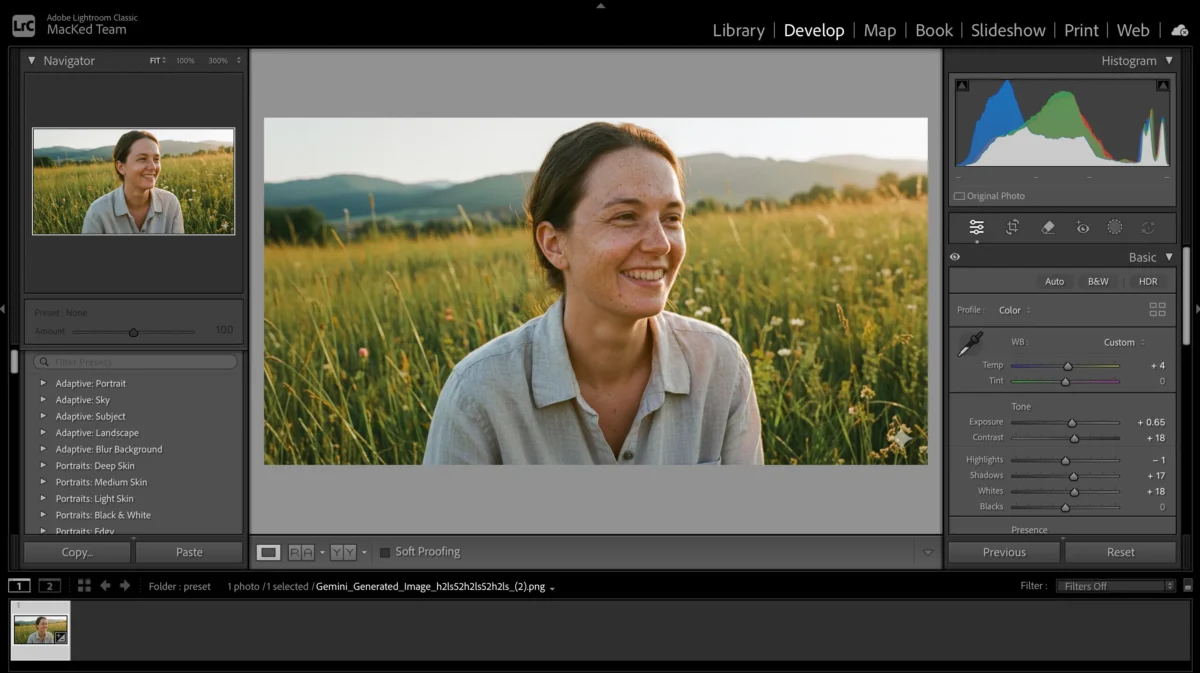
Start by importing your photo into Lightroom. You can then adjust various settings to your liking, such as:
- Exposure: Adjust the light and dark parts of the photo.
- White Balance: Correct any color temperature issues.
- Contrast: Make the darks darker and the lights lighter.
- Saturation: Increase or decrease the intensity of colors.
Once you’ve made the necessary adjustments, you’re ready to save them as a preset.
Step 2: Open the Develop Module
In Lightroom, go to the Develop module where all the editing tools are located. This is where you’ll make all your adjustments and save them.
Step 3: Create a New Preset and Name Your Preset
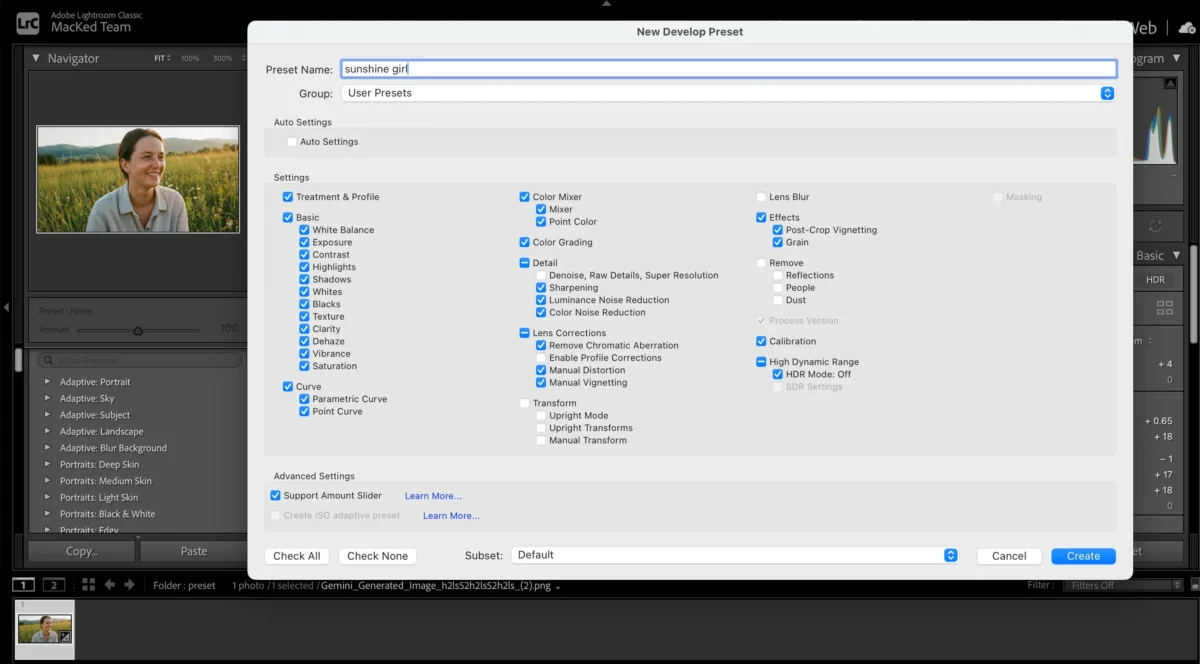
On the left-hand panel, find the Presets section. Click on the + icon at the top of the panel and select Create Preset. Give your preset a clear name (for example, “Vibrant Portraits” or “Warm Landscape”) to help you easily identify it in the future.
Step 4: Select the Settings to Save
Lightroom will present you with a list of all the settings you’ve adjusted. You can choose to save all the settings or pick specific ones that you want to apply later. For example, you can save only the exposure and contrast, but not the sharpness.
Step 5: Save the Preset
Once you’ve selected the desired settings, click Create. Your new preset will now appear in the Presets panel, and you can apply it to other photos with just a click.
Evoto: A Faster, More Convenient AI-Assisted Alternative
While Lightroom offers detailed control over your presets, Evoto makes the process even easier and faster, especially with its AI-assisted tools. Evoto combines speed and simplicity with advanced photo editing features that allow you to create custom presets for both color correction and portrait enhancements—all in a matter of minutes.
Unlike Lightroom, Evoto allows you to save not only color presets, but also portrait adjustments (such as skin smoothing and facial retouching) and background settings. This makes it an excellent choice for photographers who need to apply comprehensive edits across multiple photos quickly.
Using and saving presets in Evoto is straightforward. Here’s how to do it:


Powerful AI Photo Editor
Step 1: Upload Your Photo
Start by uploading the photo you want to edit into Evoto. You can easily drag and drop your image into the platform.
Step 2: Perform Basic Adjustments
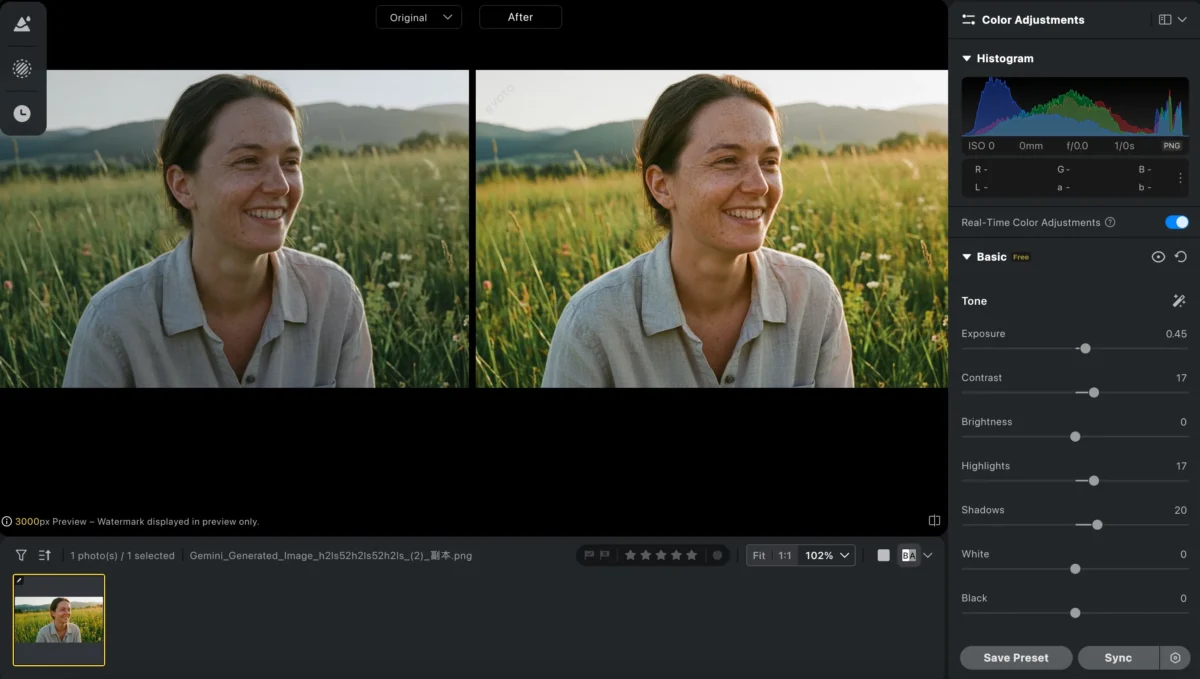
First, you can use Evoto’s AI-powered color correction tools to adjust the exposure, contrast, and saturation of your image. These settings are similar to those you would adjust in Lightroom, but with the added benefit of AI that does the heavy lifting for you.
Step 3: Edit Portraits and Backgrounds
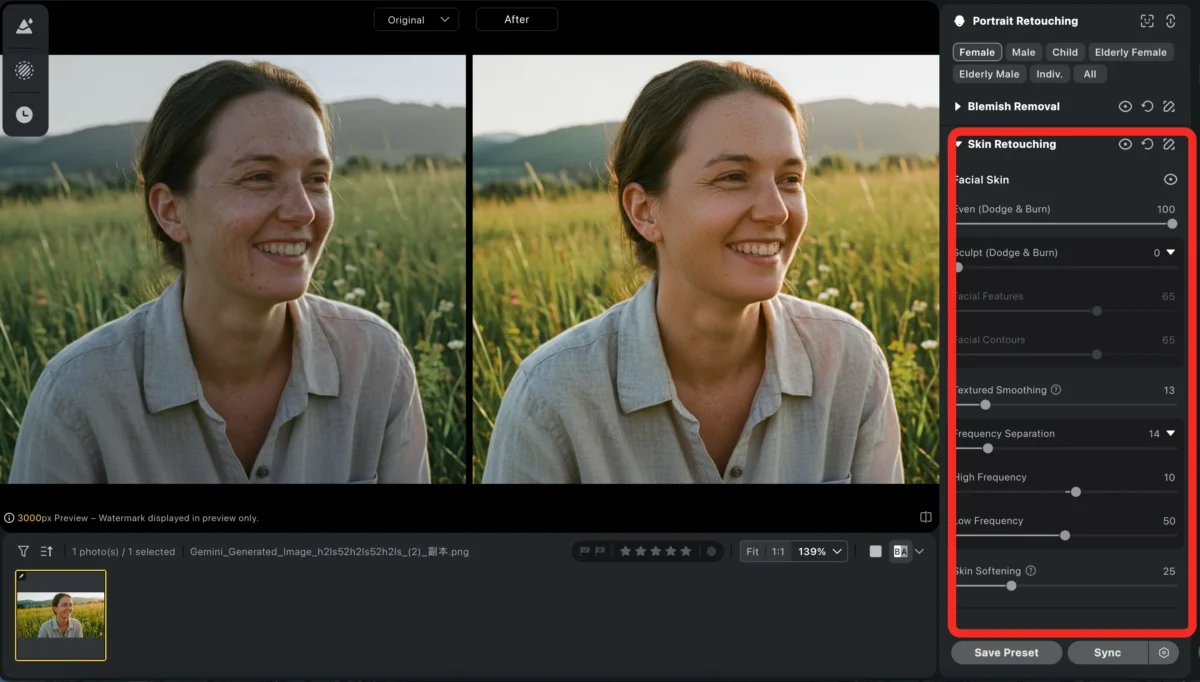
After adjusting the basics, Evoto allows you to apply advanced edits:
- Face Retouching: Smooth skin, remove blemishes, and enhance facial features.
- Background Adjustments: Apply blur or color changes to your background with simple sliders.
Step 4: Save Your Preset
Once you’re happy with your edits, click Save as Preset. This will save not only your color corrections but also your portrait and background settings.
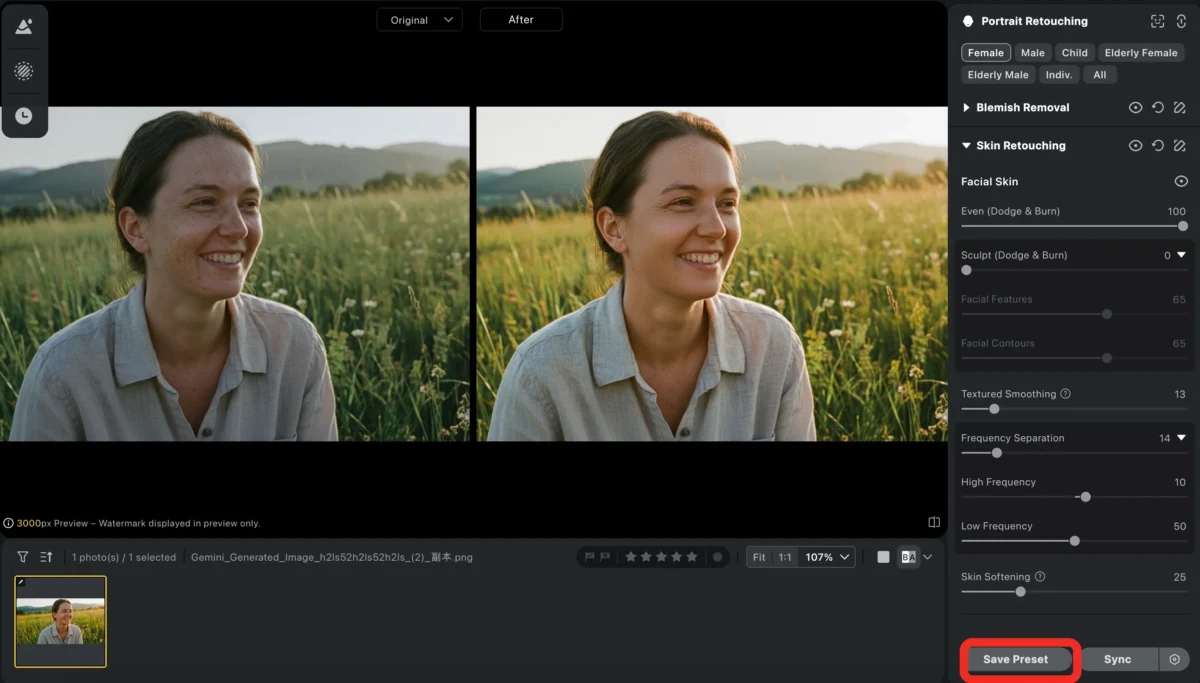
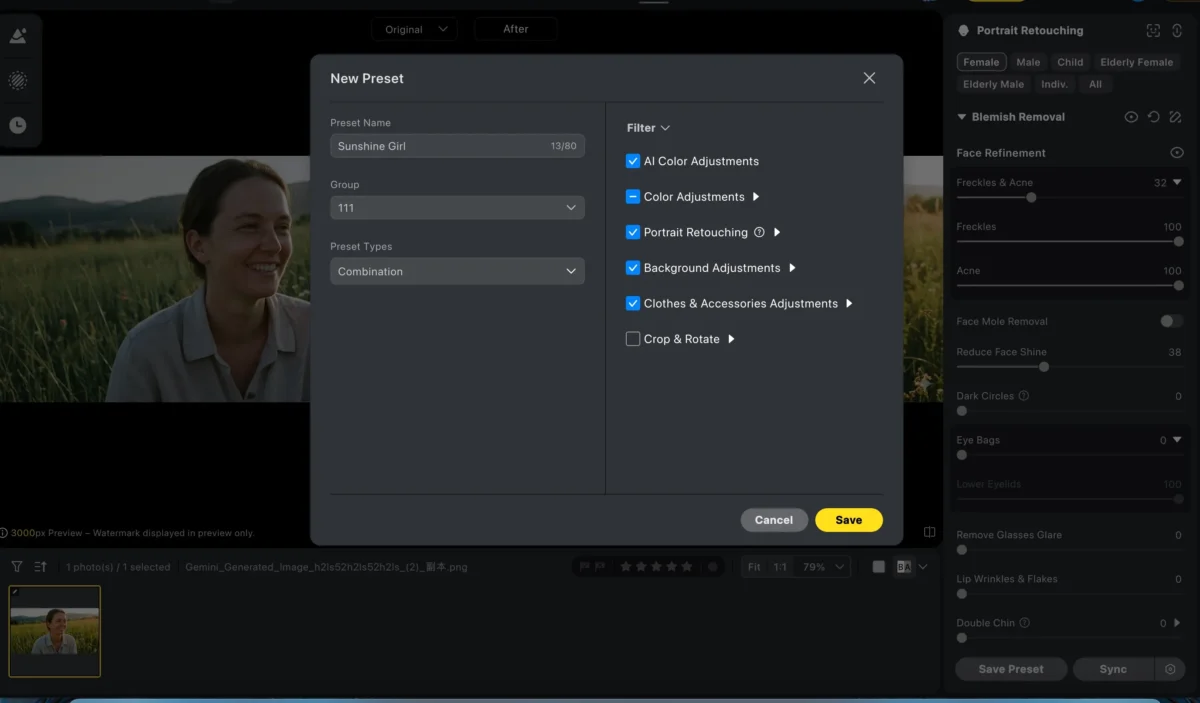
Powerful AI Photo Editor
Step 5: Apply Presets to New Photos
To apply your preset to new images, simply upload a new photo into Evoto. You can either:
- Apply the preset directly and fine-tune the settings.
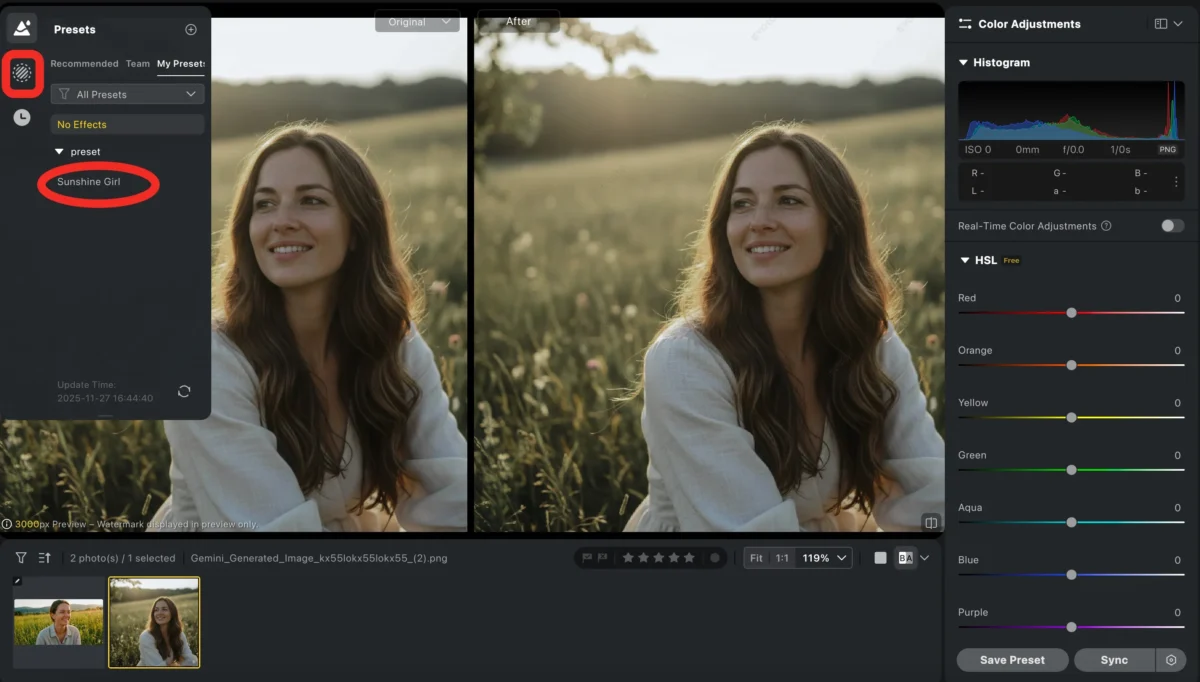
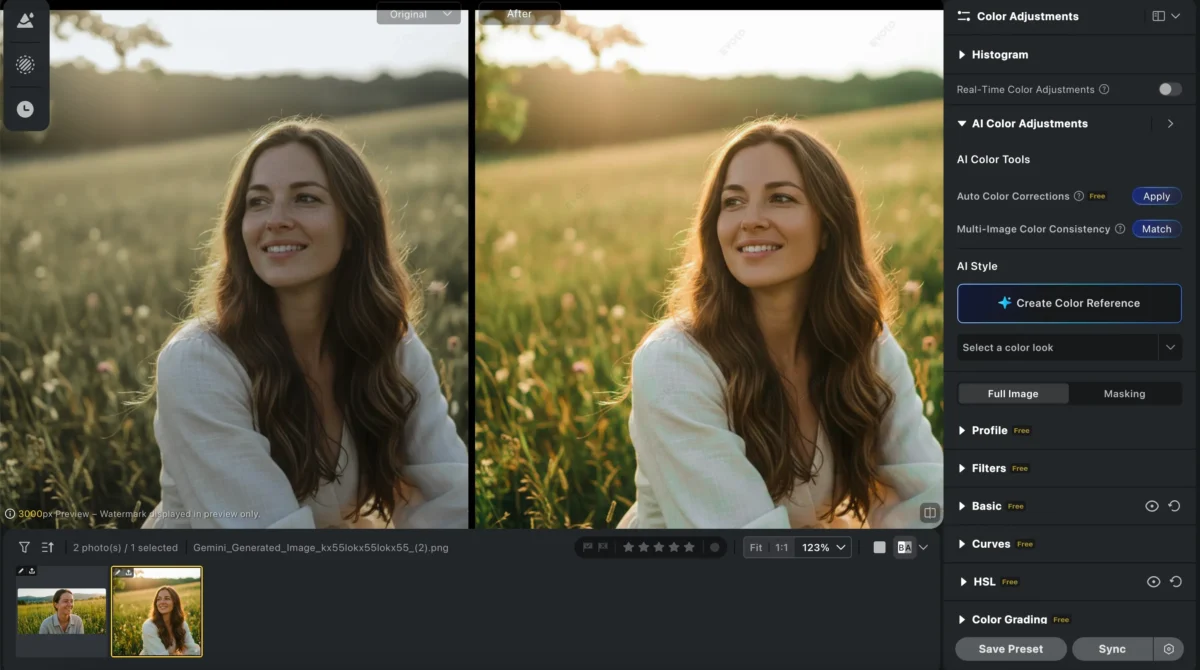
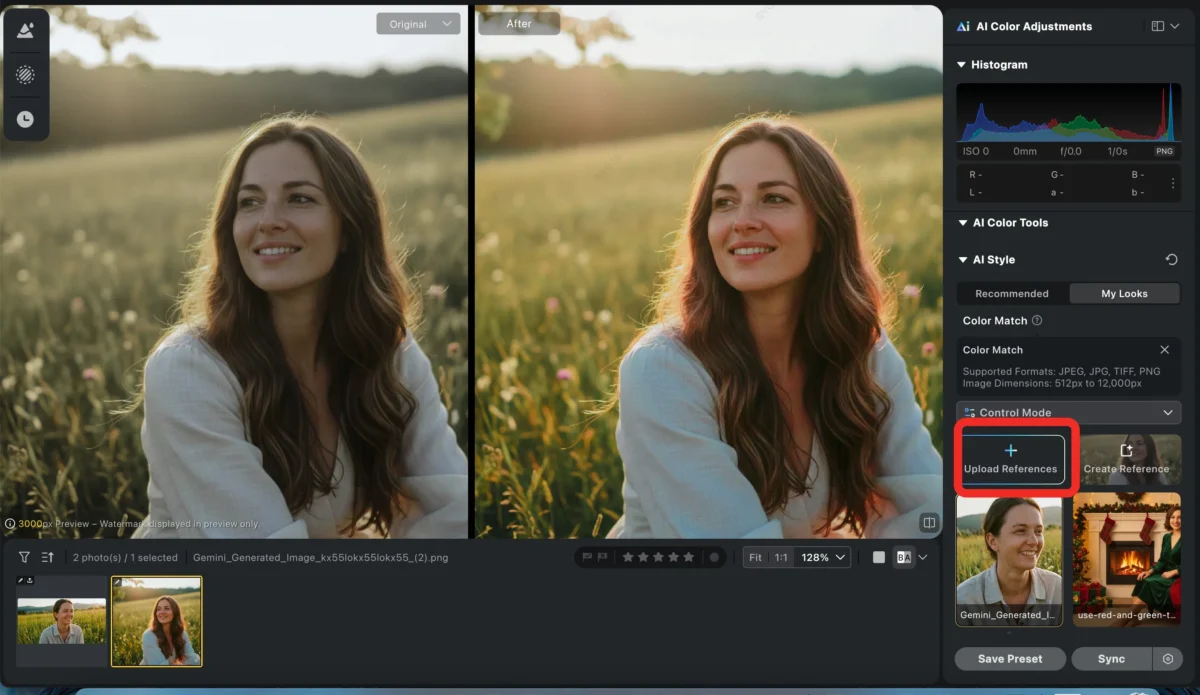
Use the “AI Color Match”feature, where Evoto’s artificial intelligence analyses the photographs you provide, discerning their colour styles, and applies these to new images, adjusting colour and exposure according to the original image’s aesthetic.
Lightroom vs. Evoto – Which is Better for Presets?
Choosing between Lightroom and Evoto largely depends on the level of control you need and how quickly you want to work.
| Feature | Lightroom Advantages | Evoto Advantages |
|---|---|---|
| Control over Edits | Full control with granular adjustments (tone curves, HSL, sharpness) | Speed and simplicity with AI-powered tools for quick edits |
| Batch Processing | Allows applying presets to entire photo batches efficiently | Allows applying presets to entire photo batches efficiently |
| Professional-grade | Ideal for photographers needing detailed, precise control, especially with high-resolution images | Great for photographers who need fast, professional-quality results |
| Cloud-based & Cross-device | N/A | Save presets in the cloud, apply across devices, and share with teams |
| Portrait & Background Presets | N/A | Save and apply presets for portraits, backgrounds, and color corrections |
| AI-assisted Editing | N/A | AI analyzes photos for better consistency and more accurate results |
Conclusion
Both Lightroom and Evoto offer powerful tools for saving and using presets, but they cater to different needs. Lightroom is the best option for professional photographers who need granular control and advanced features. However, if you’re looking for a faster, AI-powered tool that allows you to save color corrections, portrait enhancements, and background adjustments, Evoto is a superior choice.
With Evoto, you can not only create and save presets for color and exposure but also apply them across devices, share with teams, and use AI to adapt your edits to new images quickly. Whether you’re a beginner or an experienced photographer, Evoto makes the process of saving and applying presets easier, faster, and more efficient.
Try Evoto AI Photo Editor
Retouch photos with Evoto AI and make your photos best! Available on Windows, MacOS and iPadOS.



