

A high contrast black and white photo can turn ordinary images into dramatic, striking visuals. By emphasizing deep blacks and bright whites, this style enhances texture, form, and mood. Whether you’re editing a portrait, landscape, or street photo, learning how to create a high contrast black and white photo can elevate your work.
In this guide, we’ll walk you through a step-by-step workflow in Lightroom, and also show you a faster, simpler way to achieve similar results using Evoto AI.
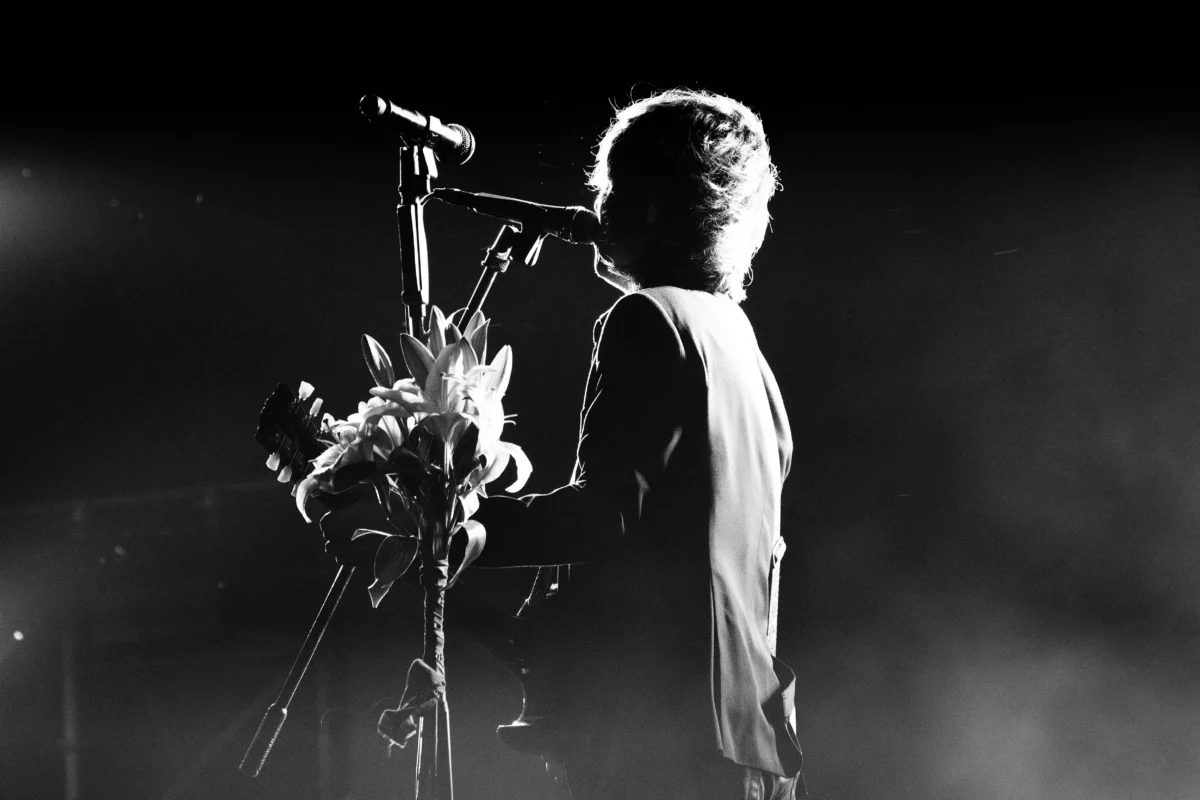
What Is a High Contrast Black and White Photo?
A high contrast black and white photo is an image where the difference between the darkest and the brightest tones is significant. This results in:
- Deep, rich blacks
- Bright, clean whites
- Reduced gray midtones
- Strong visual impact and mood
This style removes color distractions and highlights textures and shapes, making it a favorite for creative portraits, dramatic landscapes, and artistic photography.
How to Make a High Contrast Black and White Photo in Lightroom (Step-by-Step)
Creating a high contrast black and white photo in Lightroom involves converting to monochrome and then enhancing the tonal contrast. Below is a commonly used workflow adapted from professional editing practices.
Step 1: Convert to Black and White
Open your image in Lightroom and go to the Develop module. Scroll to the Treatment options at the top and select B&W.
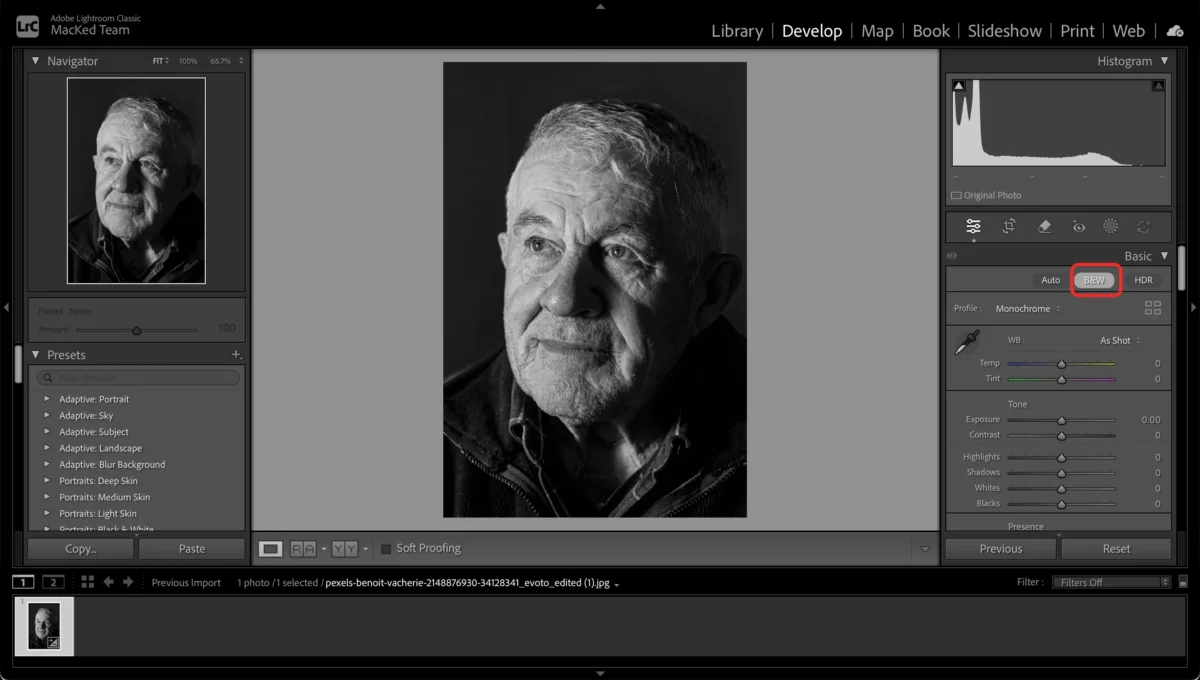
This removes color information, leaving only luminance values to work with.
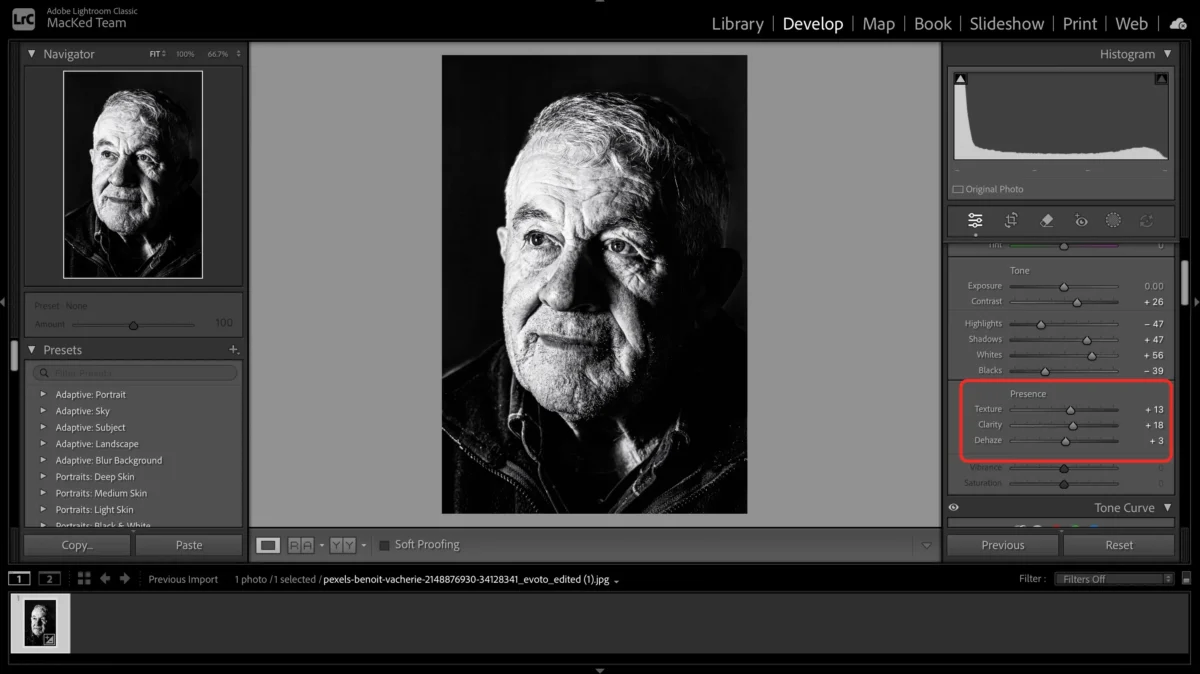
Step 2: Adjust Basic Tone Controls
In the Basic panel:
- Decrease Exposure slightly if the image is too bright
- Increase Contrast to separate darks and lights
- Lower Highlights to bring detail into bright areas
- Raise Shadows to open up dark regions
- Increase Whites and Decrease Blacks to expand tonal range
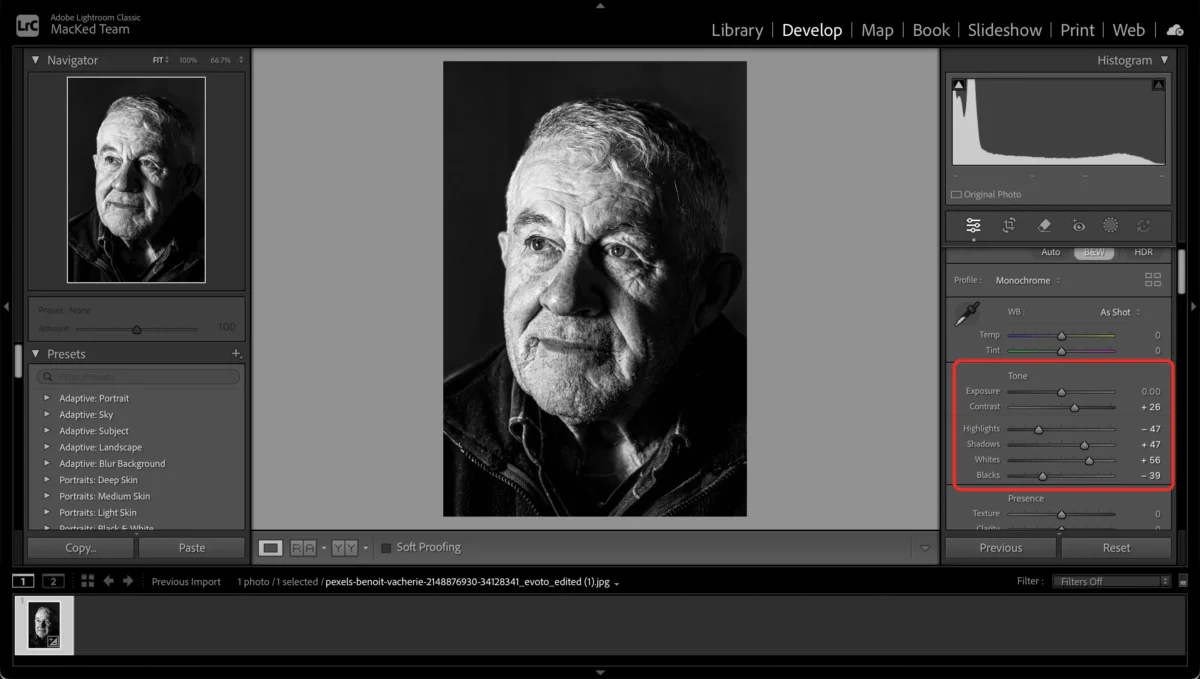
These basic adjustments form the foundation of a high contrast look.
Step 3: Fine-Tune with Tone Curve
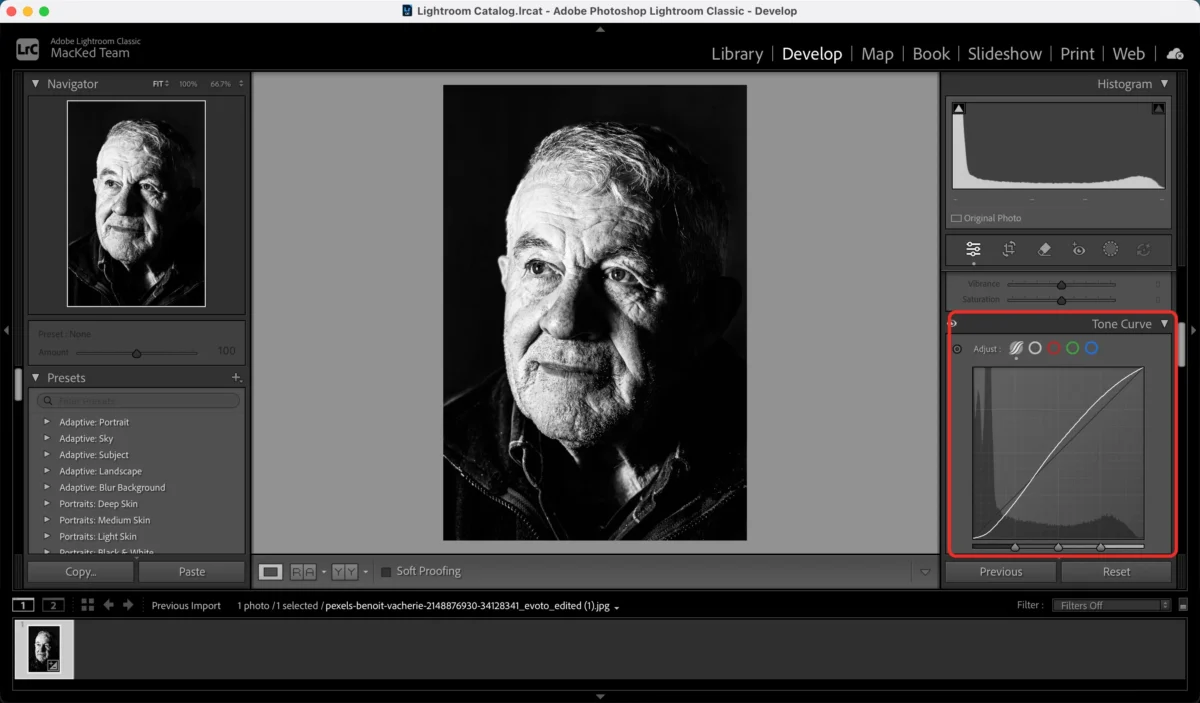
Further refine contrast using the Tone Curve panel:
- Drag the Highlights point up
- Drag the Shadows point down
- Use the Lights and Darks sliders to fine-tune midtone contrast
This S-shaped curve boosts contrast without losing detail.
Step 4: Sharpen and Add Clarity
Increase Clarity to enhance midtone contrast and texture. Subtle sharpening improves detail and overall punch.
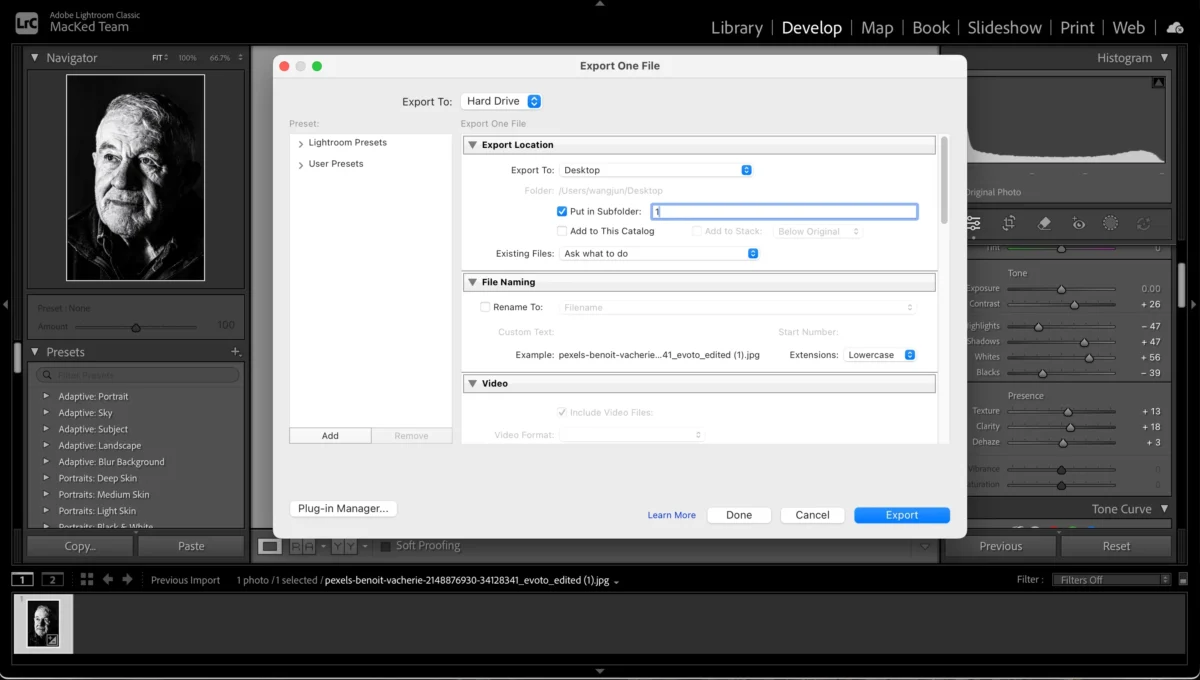
Step 5: Export Your Image
Once satisfied with the tonal adjustments, export your high contrast black and white photo in your preferred resolution and format.
Lightroom gives you fine control over every tonal aspect of your image. However, mastering these controls takes practice and understanding of light and shadow relationships.
The Fastest Way: Make a High Contrast Black and White Photo with One Click Using Evoto AI
While Lightroom provides deep manual control, not everyone wants to spend time on detailed tonal adjustments—especially when editing many images.
Evoto AI offers a streamlined workflow for creating high contrast black and white photos in seconds. Its AI-driven filters analyze each image and apply tonal changes that produce vivid monochrome results with minimal effort.


Powerful AI Photo Editor
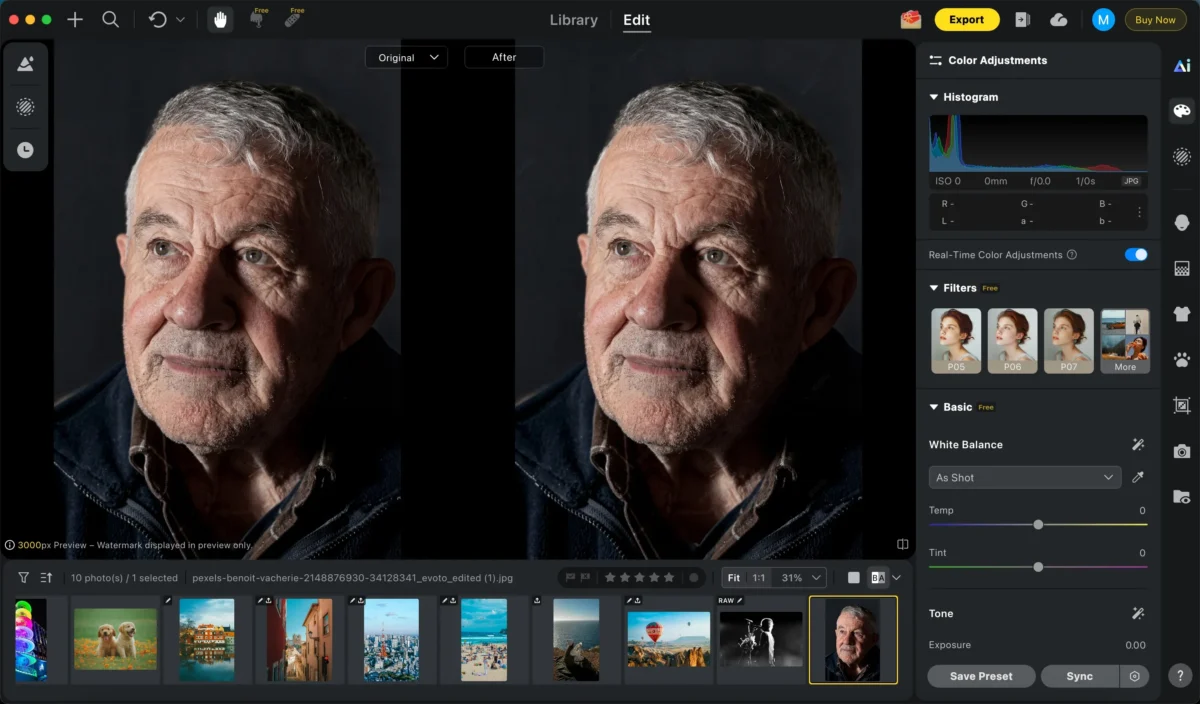
Step 1: Open Your Photo
Load your image into Evoto. The interface lets you drag and drop for fast access.
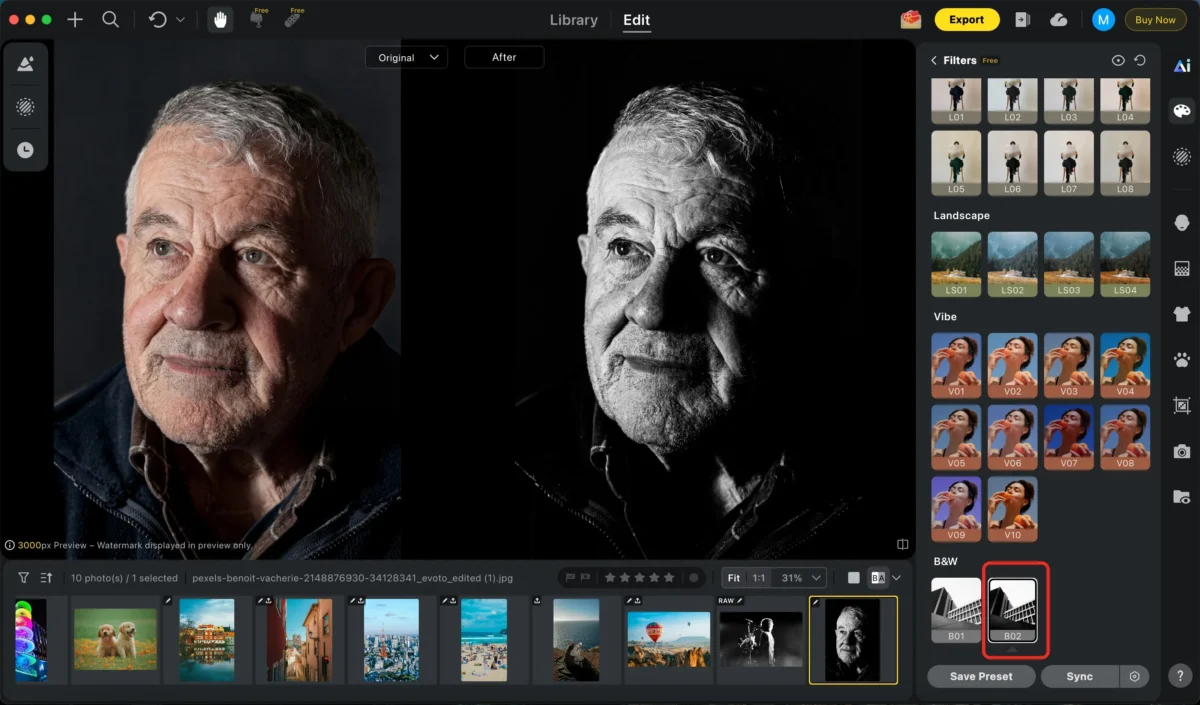
Step 2: Apply a High Contrast B&W Filter
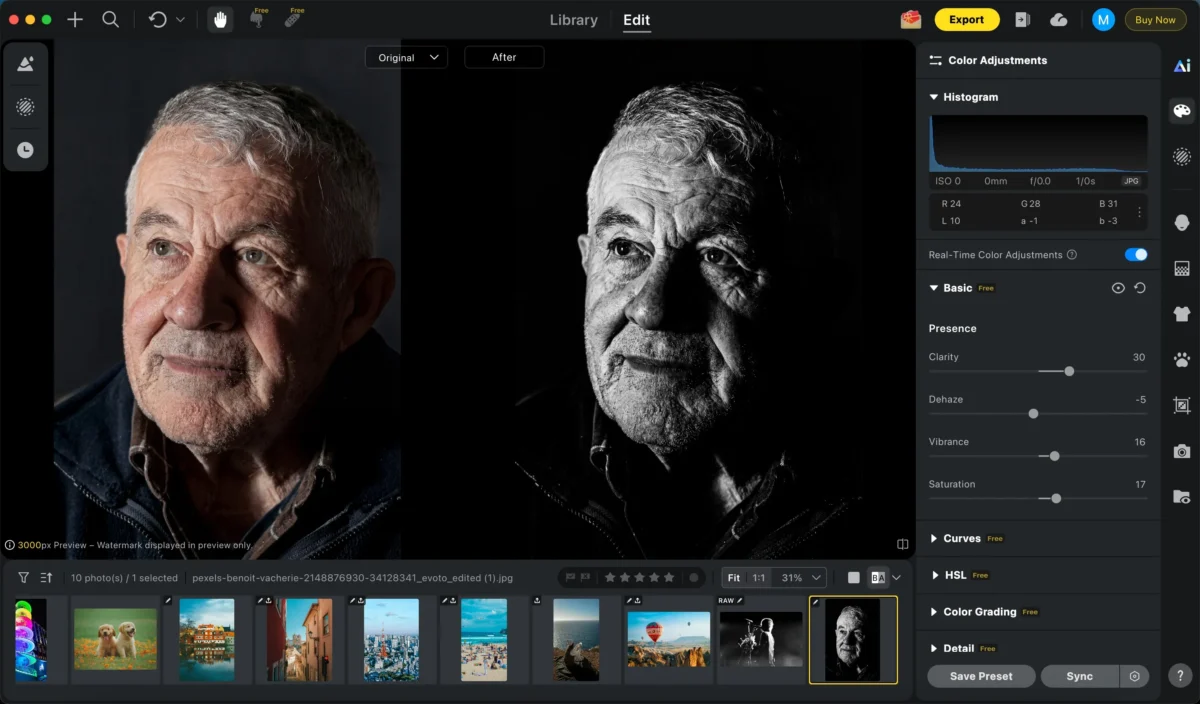
Evoto includes prebuilt filters designed for dramatic monochrome looks. Simply select a B02 filter, you can quickly achieve a high-contrast black and white effect.
Step 3: Enhance Clarity and Details
After applying the high contrast black and white filter, use Evoto’s Clarity, Texture, and Sharpness sliders to further enhance midtone contrast and fine details.
- Increase Clarity to strengthen texture and depth
- Adjust Texture to emphasize details without making the image harsh
- Apply Sharpening subtly to improve overall crispness
Step 4: Batch Edit (Optional)
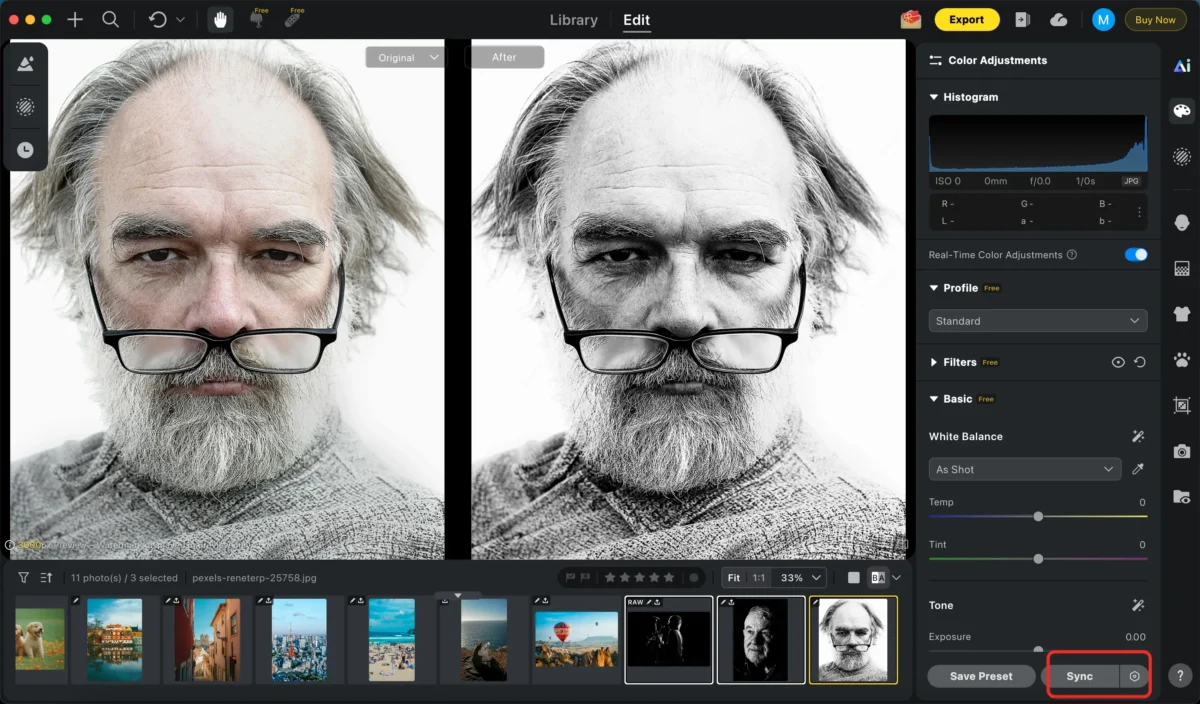
If you’re working with multiple photos, Evoto supports batch editing—apply the same high contrast B&W style to an entire group at once, ensuring consistency.
Step 5: Export
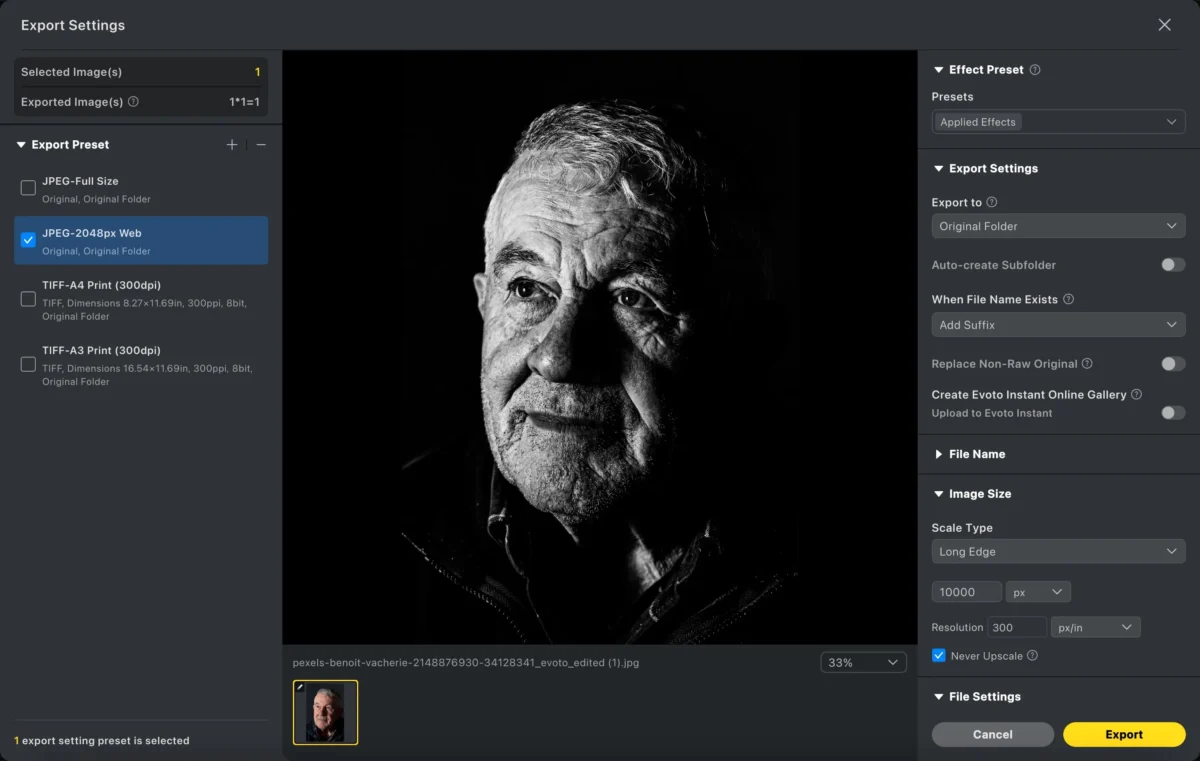
Export your images in high resolution, ready for print, web, or social media.
This workflow is ideal for photographers, social content creators, and anyone who needs consistent, professional results without detailed manual editing.
Lightroom vs Evoto AI: Which Is Better for High Contrast Black and White Photos?
Here’s a quick comparison of the two approaches:
| Feature | Lightroom | Evoto AI |
|---|---|---|
| Control | Full manual tonal control | Automated AI-driven adjustments |
| Learning Curve | Moderate to steep | Beginner-friendly |
| Speed | Slower, manual | Instant |
| Batch Editing | Limited | Fully supported |
| Customization | Very high | High with presets |
| Best For | Professionals and fine-tuning | Fast workflow and consistency |
- Lightroom lets you control every slider and curve, great for detailed artistic edits.
- Evoto AI delivers quick, consistent results with one click, perfect when speed and ease are priorities.
Powerful AI Photo Editor
Conclusion
Learning how to make a high contrast black and white photo in Lightroom gives you deep control over tonal relationships and final appearance. You can shape every part of the image to suit your creative intent.
However, if you want a faster and effortless method—especially for batching or quick turnaround—Evoto AI offers a powerful alternative with intelligent filters that deliver striking, high contrast black and white results in seconds.
Try both methods and choose the workflow that matches your style, skill level, and editing needs. High contrast black and white photography is a timeless aesthetic—now easier than ever to achieve.
Try Evoto AI Photo Editor
Retouch photos with Evoto AI and make your photos best! Available on Windows, MacOS and iPadOS.



