

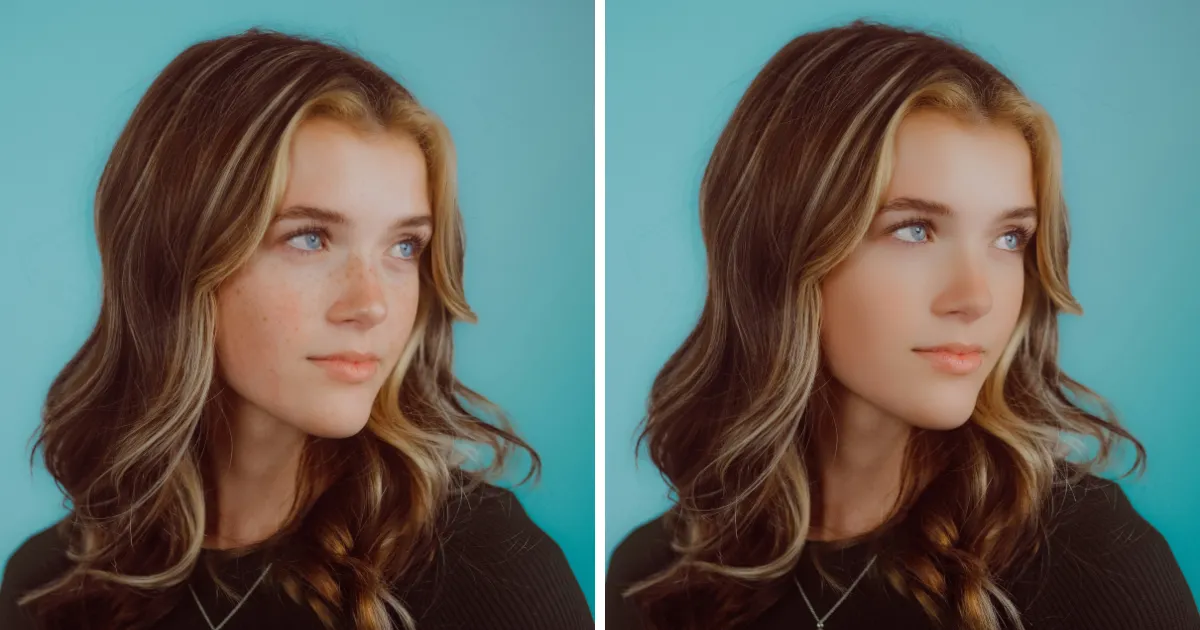
Skin smoothing is one of the most common retouching tasks in portrait photography. Whether you’re editing headshots, fashion portraits, or lifestyle photos, learning how to smooth skin in Photoshop helps create cleaner, more polished results while still keeping skin texture natural.
In this guide, you’ll learn what skin smoothing really means, how to smooth skin in Photoshop step by step, the limitations of manual retouching, and how Evoto AI offers a faster, smarter alternative.
What Is Skin Smoothing in Photo Editing?
Skin smoothing in photo editing refers to reducing visible imperfections—such as blemishes, uneven texture, or rough skin—while preserving natural details like pores, contours, and facial structure.
Good skin smoothing should:
- Even out skin tone and texture
- Reduce distractions like acne or rough patches
- Maintain realistic skin detail
- Avoid a plastic or over-retouched look
The goal is not to remove all texture, but to create clean, natural-looking skin that still feels authentic.
How to Smooth Skin in Photoshop (Step-by-Step)
Smoothing skin in Photoshop means reducing blemishes and uneven tones while keeping natural texture intact. Here’s a streamlined workflow used by professional portrait retouchers:
Step 1: Open and Duplicate Layers
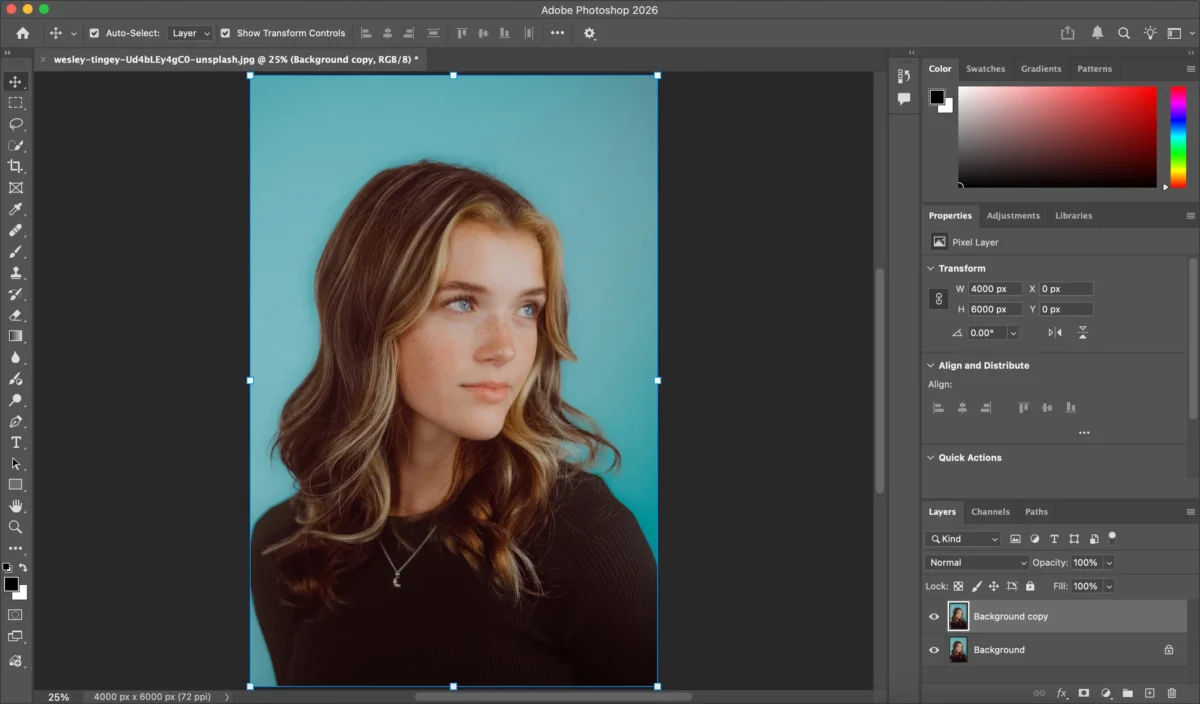
Open your portrait and duplicate the background layer. One copy for general retouching, another to preserve texture. This allows non-destructive editing.
Step 2: Separate Tone and Texture
Use frequency separation to smooth color and tone without affecting fine skin details:
- Blur the tone layer (Filter > Blur > Gaussian Blur) to soften uneven color.
- Set the texture layer to Linear Light and use Apply Image to retain detail.
Step 3: Smooth Skin on Tone Layer
With the tone layer selected, use Spot Healing Brush or Patch Tool to remove blemishes and uneven tones. Texture remains protected, ensuring a natural look.
Step 4: Refine Texture Layer (Optional)
Use Clone Stamp at low opacity (10–20%) to fix minor imperfections without losing natural skin detail.
Step 5: Mask and Blend
Apply a soft layer mask to avoid over-smoothing sensitive areas like eyes, lips, hair, and eyelashes. This prevents the “plastic skin” effect.
Step 6: Final Adjustments
Adjust brightness, contrast, and color grading. Use Dodge & Burn to enhance highlights and shadows for a polished portrait.
Step 7: Export
Export your image in high resolution for print or web.
Limitations of Smoothing Skin in Photoshop
While effective, smoothing skin in Photoshop has several drawbacks:
- Steep learning curve for beginners
- Time-consuming manual masking
- Easy to over-smooth and lose skin texture
- Difficult to apply consistently across large photo batches
- Requires strong attention to detail
For photographers handling high volumes of portraits, manual workflows can quickly become inefficient.
How Evoto AI Simplifies Skin Smoothing
Evoto AI offers a faster, more intuitive way to achieve professional skin smoothing—without complex layers or masking.


Powerful AI Photo Editor
Step 1: Import the Image
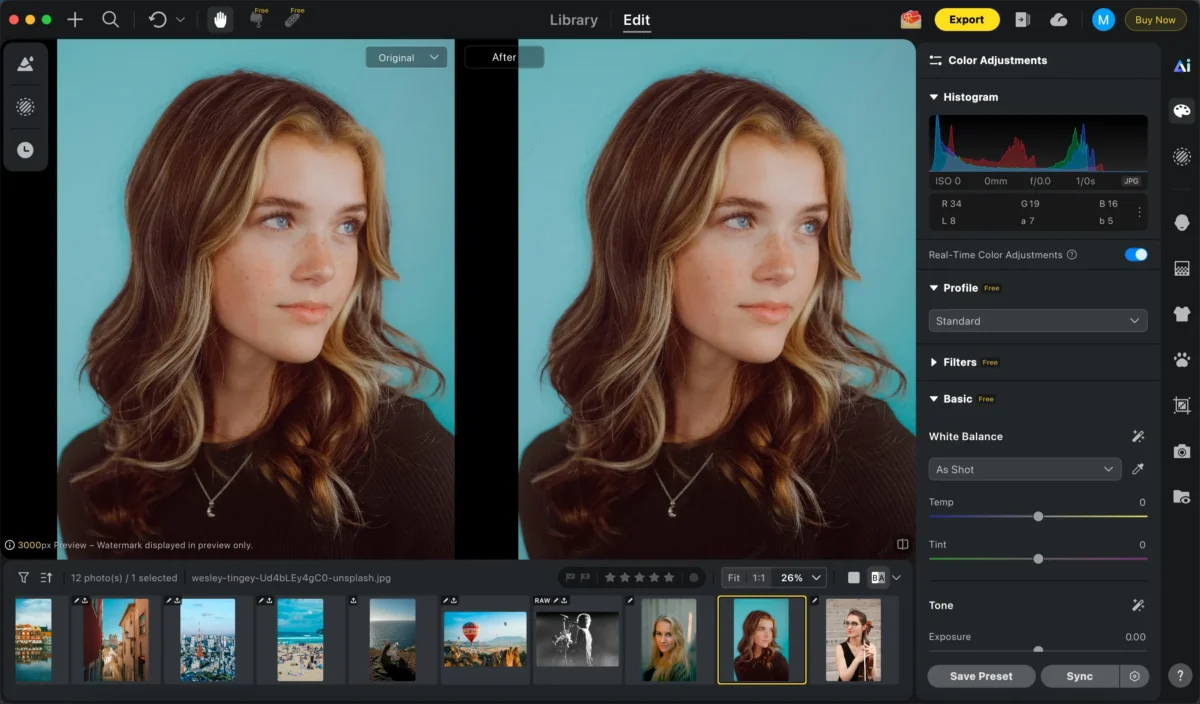
Open Evoto AI and import your portrait photo.
Step 2: Use the Skin Smoothing Tool
Navigate to the Skin retouching tool in the portrait retouching panel.
Evoto’s AI can automatically detect facial skin, and you can slide the corresponding slider to smooth the texture while preserving natural details such as pores and contours.
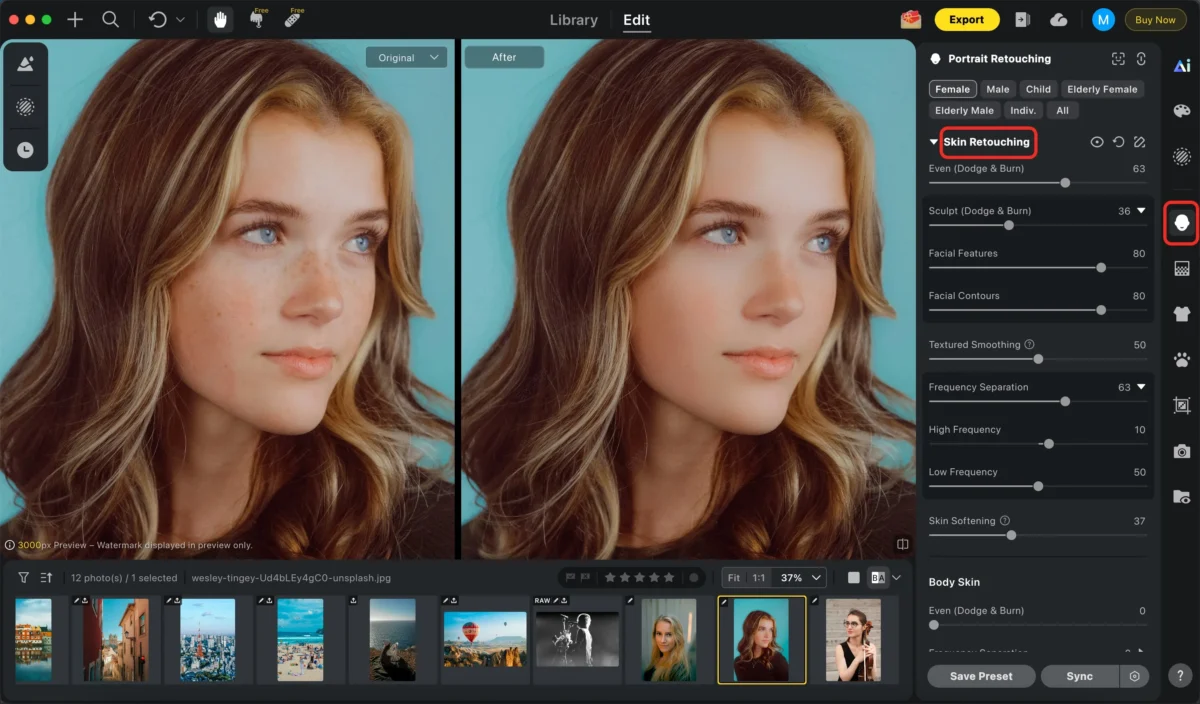
Adjust simple sliders to control the smoothing strength—no manual selection needed.
Step 3: Other Edits (Optional)
You can apply additional edits such as:
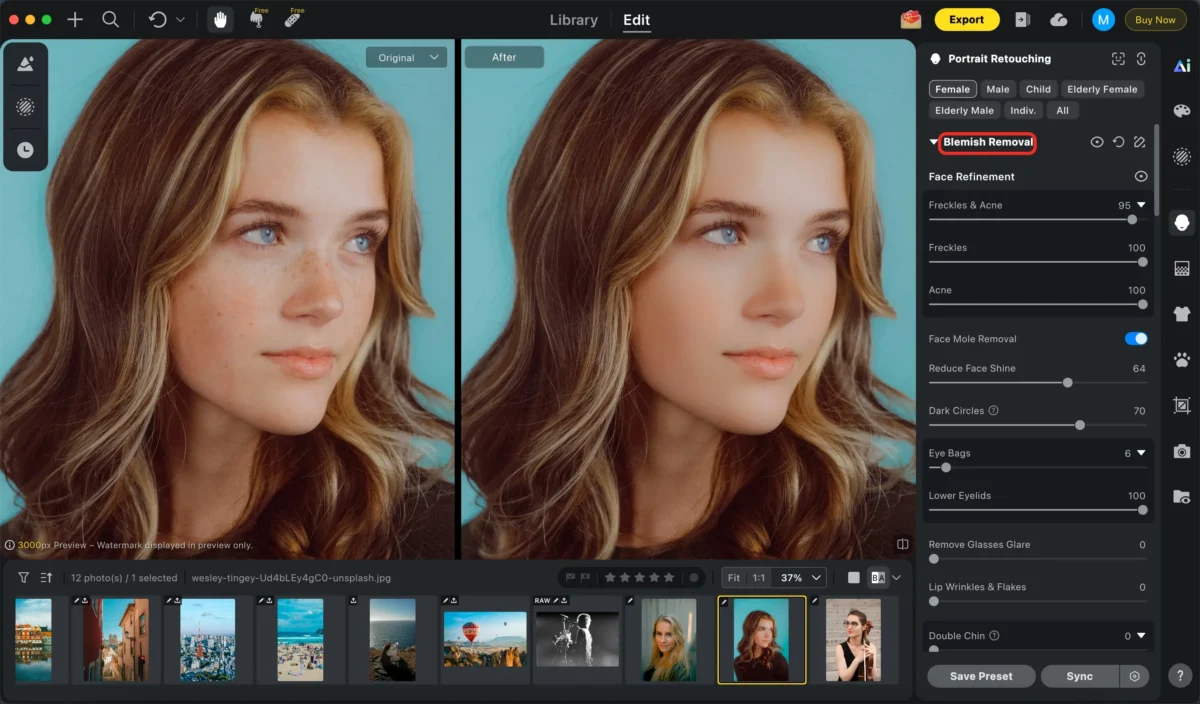
Blemish removal:Instantly remove skin imperfections while keeping natural texture for a clean, professional look.
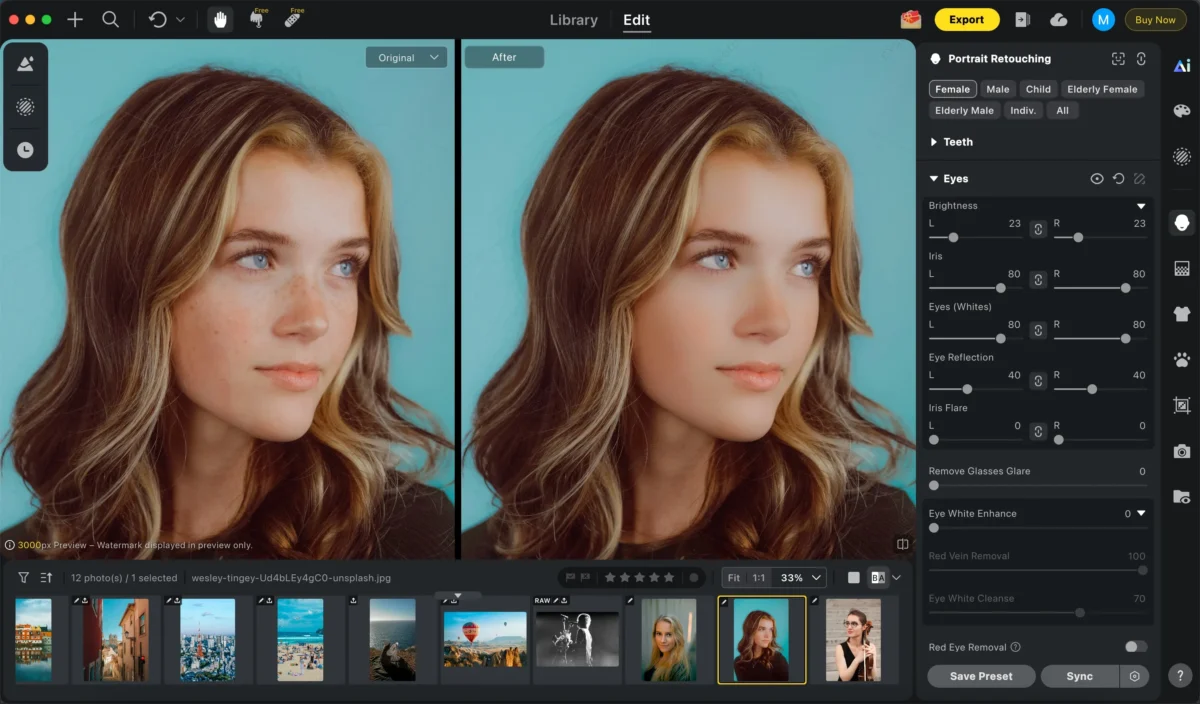
Brighten eyes:Enhance your eyes in seconds, adding brightness and sparkle without losing realism.
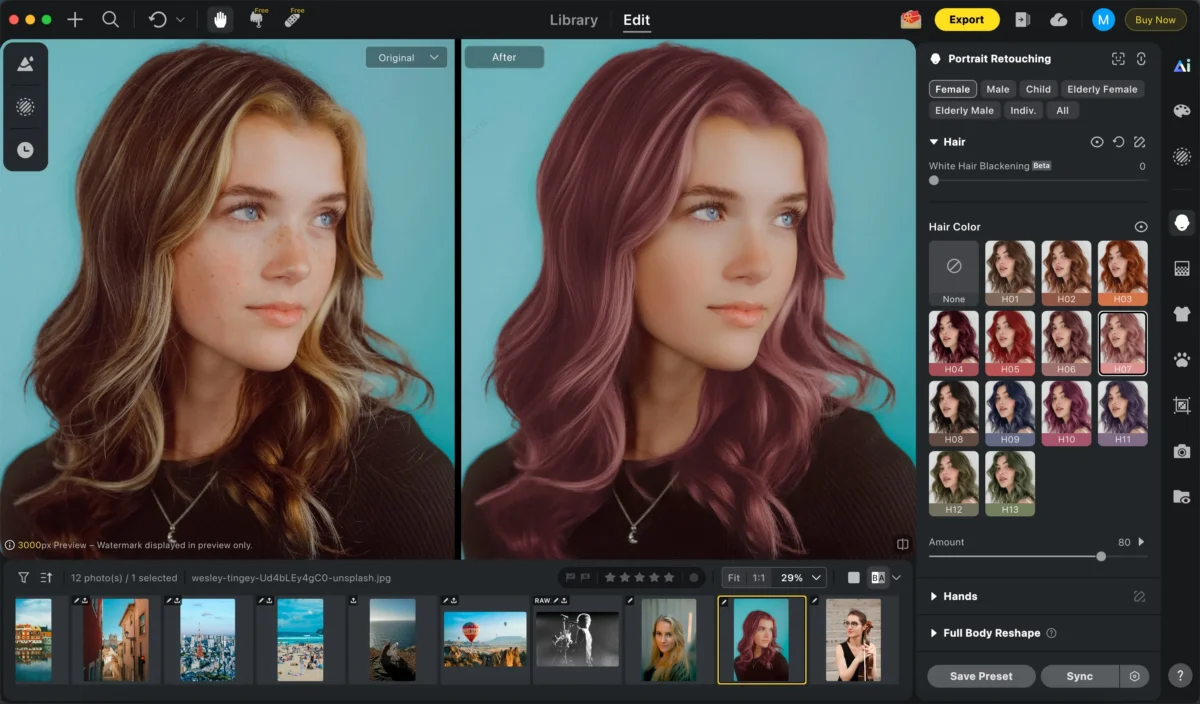
Change hair color:Easily change hair color with AI, preserving highlights, shadows, and a natural finish.
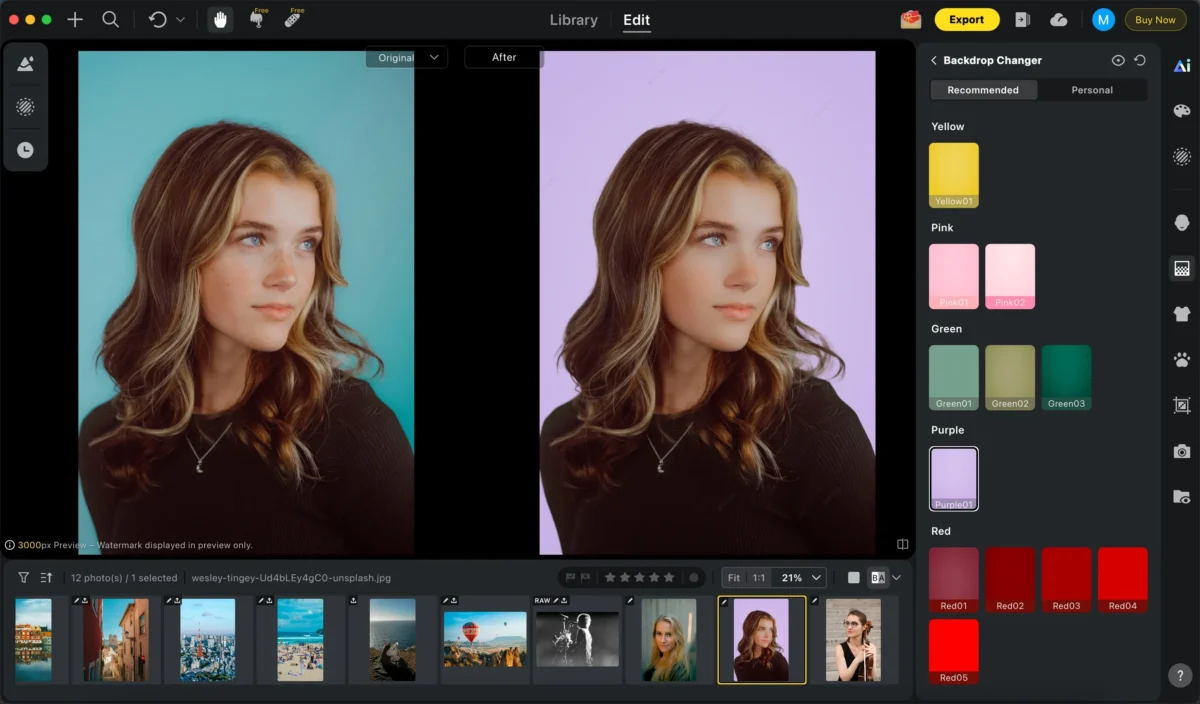
Change background:Swap any background instantly—choose solid colors, gradients, or custom images.
Batch edit:Apply edits to multiple photos at once, saving time and ensuring consistent, professional results.
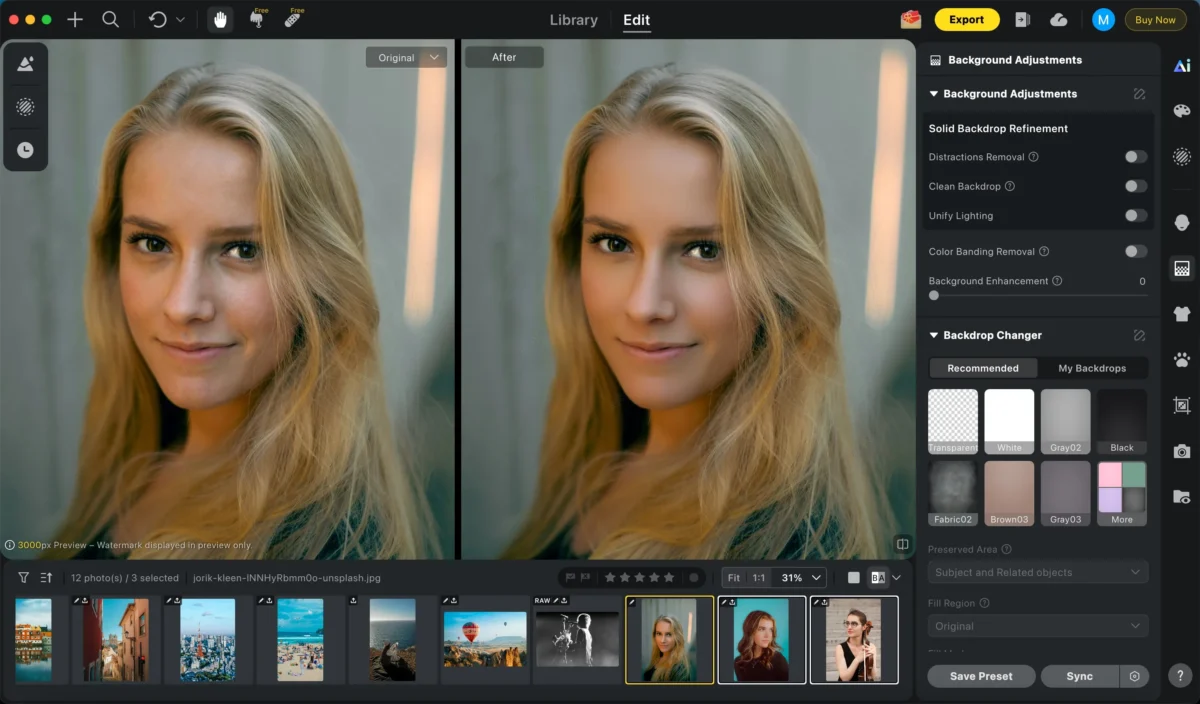
All tools work together to maintain a natural, realistic look.
Step 4: Export
Export your photo in high resolution, ready for professional use.
Batch editing is also available if you’re working with multiple images.
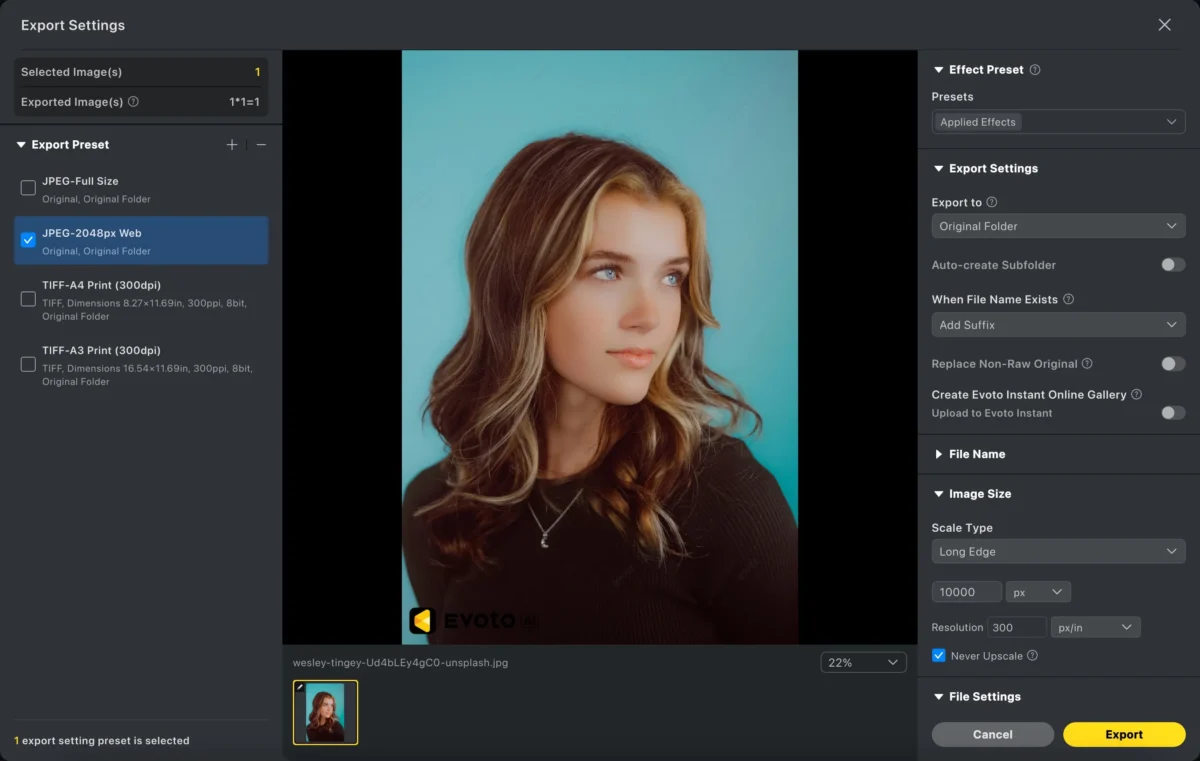
Evoto AI turns complex retouching into a fast, beginner-friendly process.
Powerful AI Photo Editor
Photoshop vs Evoto AI: Which Is Better for Skin Smoothing?
| Feature | Photoshop | Evoto AI |
|---|---|---|
| Learning curve | Steep | Beginner-friendly |
| Editing speed | Manual & slow | Fast with AI |
| Skin detection | Manual masking | Automatic AI detection |
| Consistency | Hard across batches | Easy batch processing |
| Best for | Advanced retouchers | Fast, professional results |
Photoshop is ideal for detailed, hands-on retouching.
Evoto AI is better for speed, consistency, and natural results—especially for high-volume portrait work.
Conclusion
Learning how to smooth skin in Photoshop is a valuable skill for professional retouching, but it comes with a learning curve and time investment. Manual techniques offer precision, yet they can slow down your workflow.
Evoto AI provides a modern alternative—allowing you to smooth skin naturally, quickly, and consistently with AI-powered tools.
Whether you prefer full manual control or a smarter automated workflow, choosing the right approach to skin smoothing can elevate the quality of your portraits and save you hours of editing time.
Try Evoto AI Photo Editor
Retouch photos with Evoto AI and make your photos best! Available on Windows, MacOS and iPadOS.



