On video, eyebrows do more work than people realize — they carry every micro-expression, anchor the upper half of the face, and shape how viewers read mood in every single frame. Most “beauty” apps handle them with a single intensity slider that paints a fake brow on top of the footage, which is exactly the sticker-on-skin look that screams “filtered” the moment the clip plays. Evoto Video does it differently: two separate, non-destructive modules — one to reshape eyebrows you already have, one to restyle them like a real makeup artist would — so the result looks like actual brow hair, not a graphic overlay.
Why Eyebrows Matter for Your Face Shape on Video

Eyebrows do three jobs for face shape that no other feature does:
- They define the upper boundary of the face. Brow position controls how tall the forehead reads, how open the eye area feels, and where the visual center of the face sits.
- The peaks are the visual widest point of the upper face. A brow peak that sits even a millimeter low on one side pulls the whole upper face out of balance — and on video, that imbalance shows in every shrug, smile, and head turn.
- Tilt and arch carry expression. A downturned outer brow can make a perfectly cheerful clip read as tired or annoyed; a flat brow can make a strong face look smaller; an overly high arch can age a youthful face.
Photos let you pose around all three. Video doesn’t. Every small head movement and every brow-muscle twitch redistributes those jobs, so the asymmetry or droop you wouldn’t notice in a still becomes impossible to ignore once the clip plays. That’s why for creators and on-camera talent, eyebrows are usually the first thing worth touching when retouching a video portrait.
Evoto Video: A Professional Video Editor Built for Portraits
Evoto Video is a desktop AI video editor built specifically around portrait retouching — not a general-purpose timeline tool, not a one-tap beauty app. The whole interface revolves around a per-feature, slider-driven Portrait Retouching panel: separate tabs for Face Shape, Eyebrows, Eyes, Nose, and Mouth, plus a Makeup Suite and Skin Retouching layer on top. Every adjustment is non-destructive and frame-consistent, with an AI tracker that locks facial landmarks across the entire clip — no keyframing, no masks, no compositing. Because each slider only moves the feature it’s named for, edits stack cleanly: you can dial in a brow lift without dragging the eye or the forehead with it. It runs on Mac and Windows, handles MP4 / MOV / MKV and most production formats, and exports up to 4K.
How to Reshape Eyebrows in Video with Evoto Video
Evoto Video gives you two separate eyebrow modules inside the right-hand Portrait Retouching panel. They do different jobs and most polished clips use both, in this order: Reshape first to move and resize the real brow, Eyebrow Makeup second to restyle shape, density, and color.
Evoto Video – Be the First to Edit Smarter
Professional-grade AI color grading and retouching for video creators.
Part 1: Reshape Eyebrows — Adjust Position, Tilt & Arch
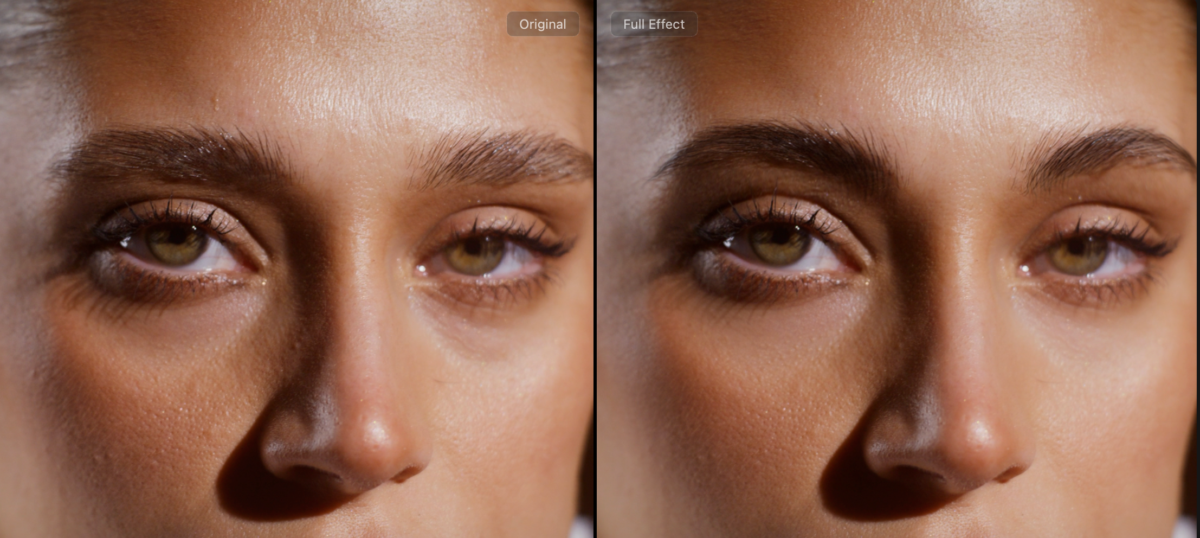
Open Facial Reshape → Eyebrows. This module changes the brow you already have — it physically repositions and resizes your own brow hair instead of overlaying a graphic shape on top, which is what keeps the result looking like real eyebrows rather than printed-on filter art. Each of the five sliders is split into independent Left and Right tracks, so you can balance an uneven pair without disturbing the side that’s already correct — a level of control most one-slider “brow lift” filters simply don’t offer.
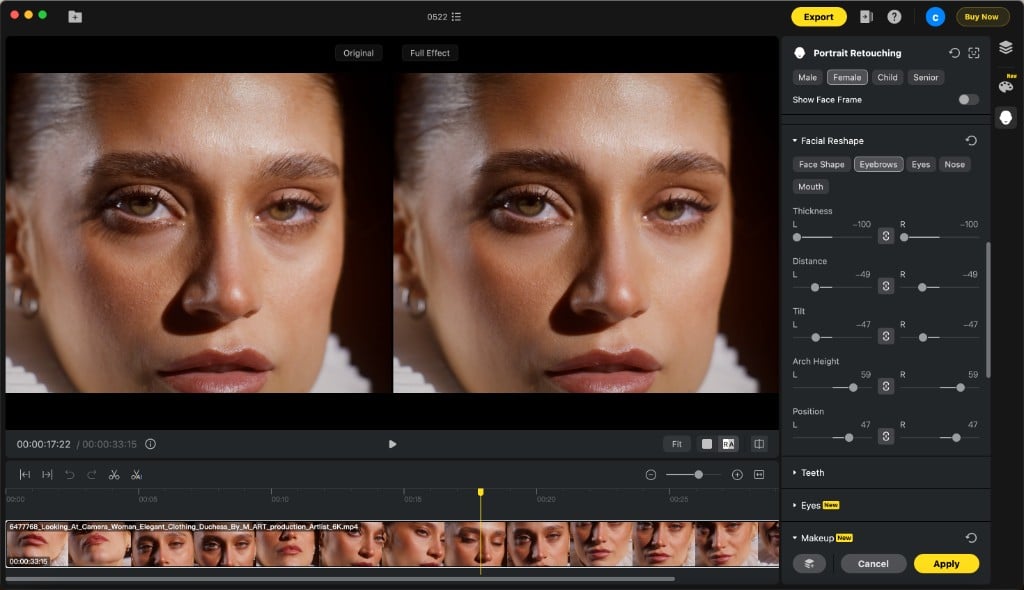
- Open the Eyebrows tab inside Facial Reshape and toggle Show Face Frame at the top to overlay landmark guides on the preview.
- Scrub to a frame that exposes the imbalance most — usually a smile or a three-quarter turn.
- Use Position to raise or lower the whole brow vertically. This is the highest-impact slider for “tired-looking” footage; keep moves under ±20 unless the original brow sits dramatically low.
- Use Tilt to rotate the outer end of the brow up (brighter, more open look) or down (more serious). ±10–15 is usually enough on camera.
- Refine with Arch Height for the peak, Distance for the gap between brows, and Thickness for fullness.
Because the AI tracker holds every landmark across all frames, the brow you set on frame 1 sits in the exact same relative position on frame 360 — no jitter, no popping, no “breathing” outline. That frame-consistent tracking is the practical difference between actually reshaping eyebrows in the footage and a generic AR-style filter that just paints over your video.
The same workflow scales down nicely for male brows, where the goal is usually proportion rather than lift — short brows that end before the outer eye corner read as unfinished against an angular face. A small Distance nudge plus a tail-lengthening pass with Position and Tilt rebuilds the brow to fit the face shape without ever crossing into “groomed-too-much” territory.
Evoto Video – Be the First to Edit Smarter
Professional-grade AI color grading and retouching for video creators.
Part 2: Eyebrow Makeup — Restyle Shape, Density & Color
When the brow position is already where you want it but the shape or density still needs work — sparse spots, mismatched arches, or a brow color that doesn’t sit right under the lighting — open Makeup Suite → Eyebrows. Nine numbered templates cover the most-used real-world looks: soft natural arch, sharp graphic arch, straight Korean brow, rounded full brow, faded sparse brow, and a few mid-points in between. Unlike a one-tap brow filter, each template here is a translucent overlay tuned to blend with the underlying hair, so it reads like extra makeup density on a real brow — not a sticker pasted on skin.
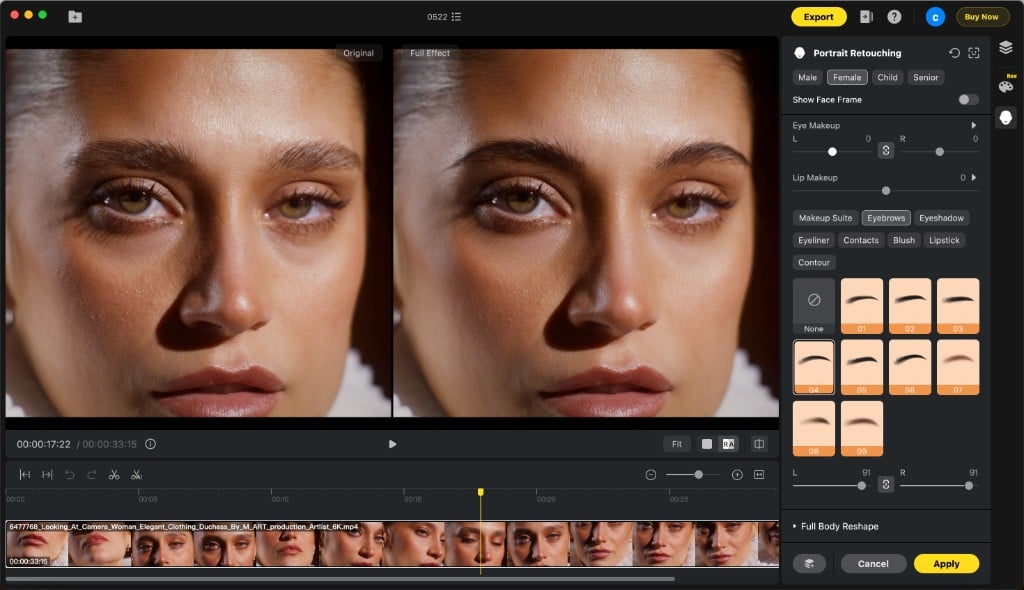
- Open Makeup Suite → Eyebrows in Portrait Retouching.
- Pick a template that matches the face shape and the mood of the clip — softer rounded shapes (02, 04) for warm lifestyle content, sharper arches (05, 06) for editorial or fashion footage, sparse natural (08, 09) for low-makeup male and unisex looks.
- Adjust the L and R intensity sliders separately to match how much density each side actually needs. Sparser brows usually want 60–90, naturally full brows 30–50.
- Pull the master Eyebrow Makeup slider back if the overall result reads too painted; 80–90 usually keeps the underlying hair visible through the overlay.
Stacked on top of the Reshape pass, this gives you natural-looking brows that follow every head turn and expression without ever looking like a flat filter — the brow hair beneath stays real, and the makeup template only adds enough density to clean up the silhouette.
Beyond Eyebrows: Other Portrait Retouching in Evoto Video
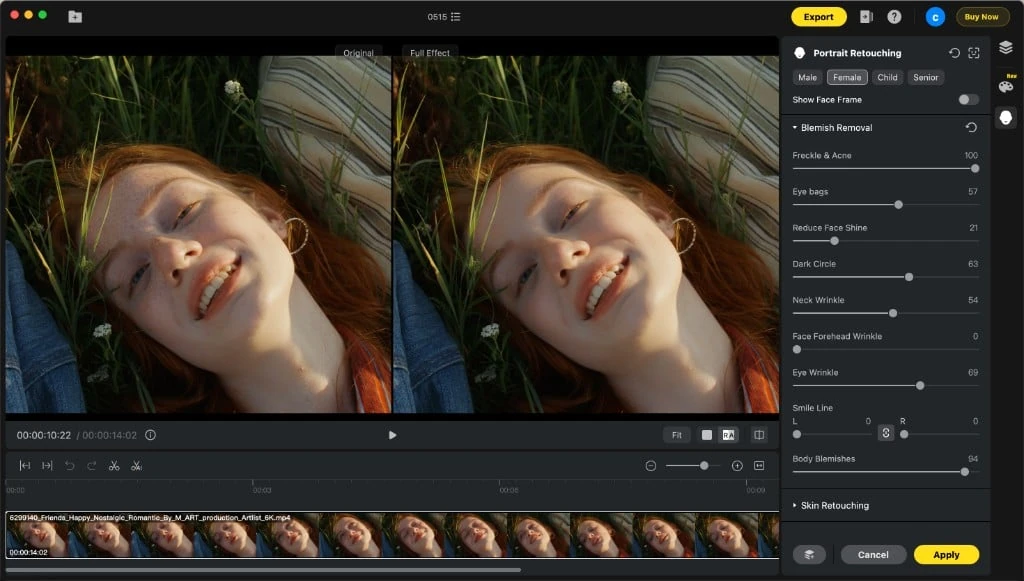
Eyebrows are one piece of a much wider portrait toolset. Inside the same Portrait Retouching panel you get Face Shape (jawline, cheekbones, V-shape, forehead, chin), Eyes (size, brightness, tilt, eye-bag and dark-circle controls), Nose (bridge, tip, width, height), and Mouth (size, corners, fullness), each with L/R independent sliders and the same frame-consistent AI tracking. The Makeup Suite layers eye shadow, eyeliner, contour, lipstick, blush, and contact-lens overlays on top, while Skin Retouching handles blemish removal, tone evening, oil control, and texture-preserving smoothing in one pass. Every module behaves like the eyebrow workflow — non-destructive, slider-driven, AI-tracked, no keyframing.
FAQ
Will viewers spot the eyebrow edit on close-up shots?
Not if the slider moves stay subtle and you use Reshape before Makeup. Reshape moves your real brow hair (no overlay edges to give it away), and Makeup templates blend on top translucently. The painted-on look you get from cheap brow filters comes from a single full-opacity overlay — that’s exactly the workflow Evoto Video avoids.
Do men need to edit eyebrows in videos?
Often yes, just more conservatively. Male brows still benefit from L/R balancing (Position ±5–10) and a small Tilt correction on tired footage. Skip the heavier Makeup templates 01–07; template 08 or 09 (“sparse natural”) at low intensity (20–40) can still help with patchy spots without looking filled-in.
Can I keep the Reshape edits while changing the Makeup template?
Yes. The two modules are independent layers stored under one Portrait Retouching preset, so swapping or removing a Makeup template never resets your Reshape sliders — you can audition five different brow shapes over the same balanced positional pass.
Conclusion
Eyebrows are the first thing that drifts in a video portrait and the first thing that gives away a cheap filter. The two-layer workflow above — Reshape for natural positional fixes, Eyebrow Makeup for non-destructive restyling — is how you keep brows looking like real hair across every frame. Try it inside Evoto Video.
Evoto Video – Be the First to Edit Smarter
Professional-grade AI color grading and retouching for video creators.