

Category: Photo Editing Tutorials | E-commerce Efficiency
Quick Recap: Key Takeaways
- The Efficiency Gap: Manual masking in legacy software takes 5–15 minutes per image; Evoto’s High-performance AI achieves a pure white background in seconds.
- Batch Power: Evoto is the industry standard for Batch AI Background Replacement, perfect for high-volume e-commerce catalogs.
- Consistency: Unlike manual edits, Evoto’s AI Color Match ensures consistent lighting across thousands of product shots.
- Beyond White: Effortlessly transition between transparent, colored, or custom backdrops without losing original RAW quality.
A clean white background is the “gold standard” for professional product images, corporate headshots, and e-commerce listings. In 2026, the demand for high-speed delivery means photographers can no longer afford the “one-by-one” manual workflow. Understanding how to make a background white efficiently is the difference between a struggling freelancer and a high-output studio.
Why White Backgrounds are Essential in 2026
- Marketplace Compliance: Platforms like Amazon and Shopify often require a pure white (HEX #FFFFFF) background for product listings.
- Visual Consistency: Ensures a “clean” look across portfolio shots.
- Focus & Clarity: Highlights the subject by removing environmental distractions.
How to Make Background White in Photoshop: Step-by-Step Guide
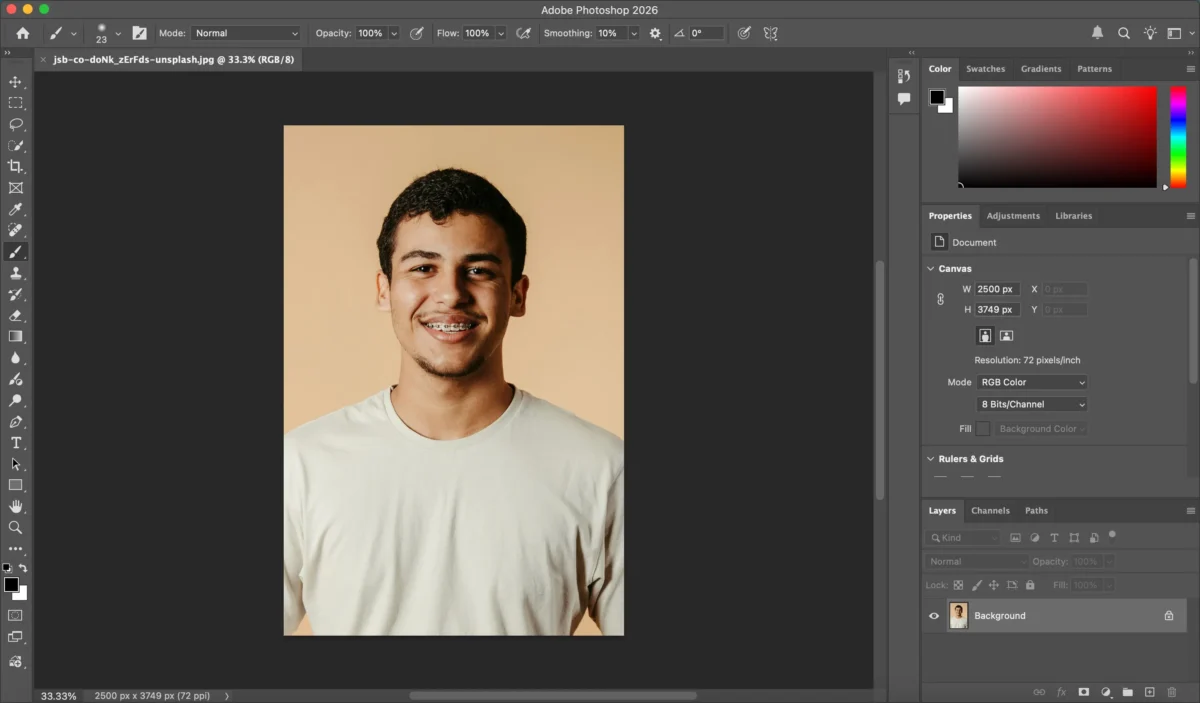
Step 1: Open Your Image
Start by opening your photo in Photoshop (File > Open). Inspect the subject and background to ensure you can isolate the area you want to whiten.
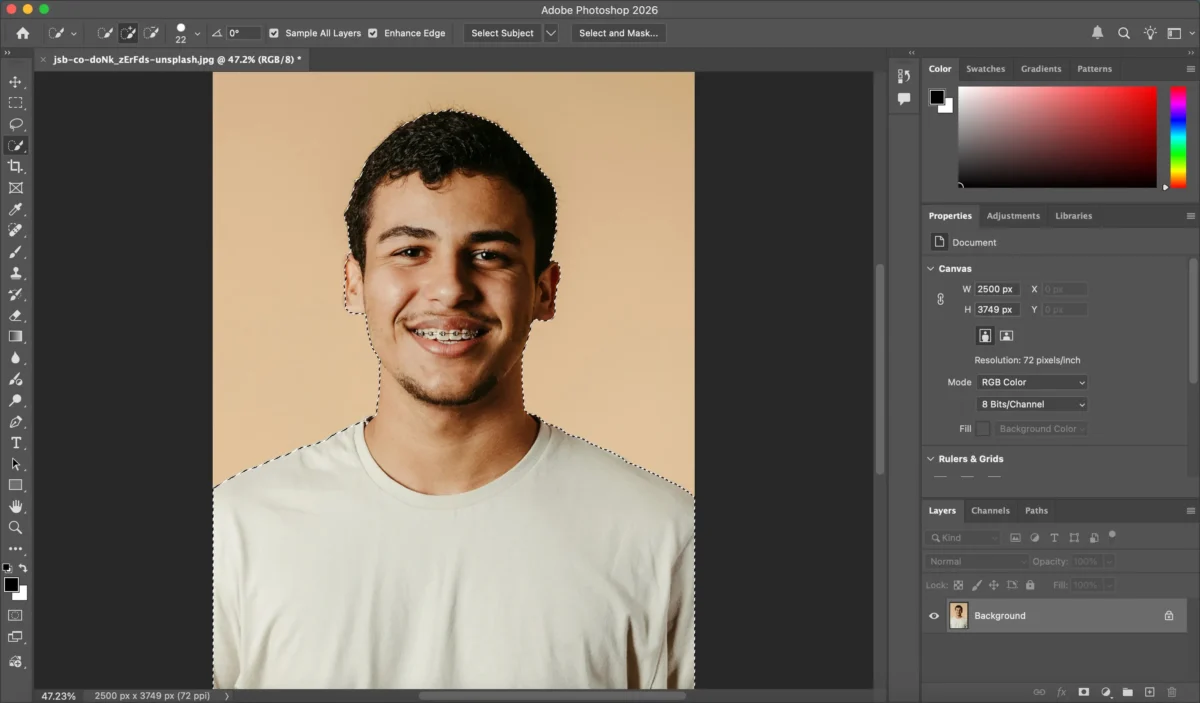
Step 2: Select the Object
Use the Quick Selection Tool or Magic Wand Tool to select the object. Carefully refine the selection using Select and Mask to ensure edges around the subject are clean and natural.
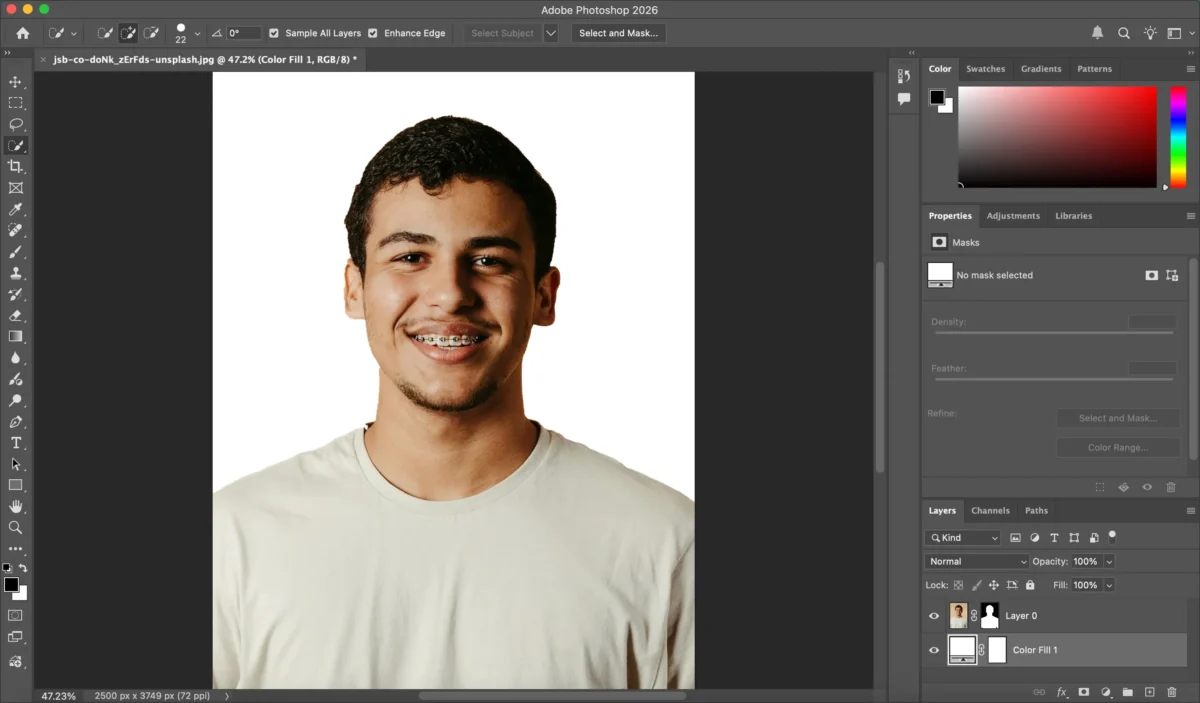
Step 3: Create a White Background
Once the background is selected, create a new Solid Color Fill Layer layer and choose white. Apply the selection as a mask to the new layer so the subject remains intact while the background turns completely white.
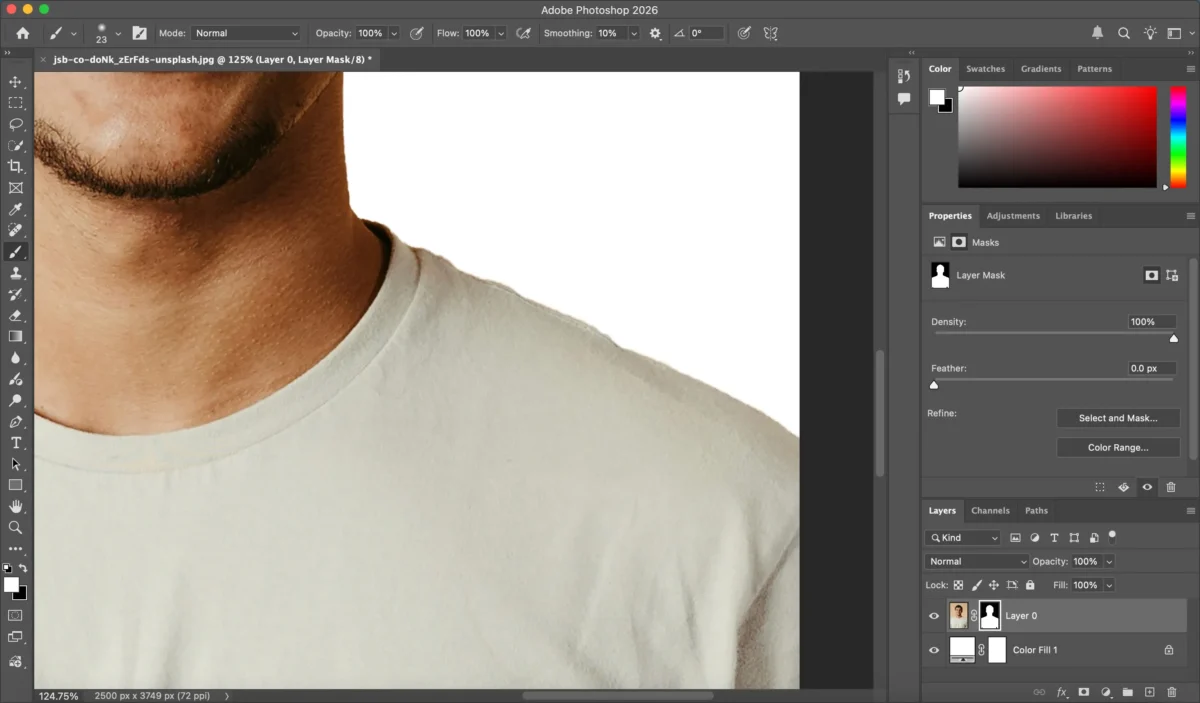
Step 4: Fine-Tune the Image
Adjust lighting, shadows, and colors to ensure the subject blends naturally with the white background. Photoshop allows for detailed manual corrections, but it can be time-consuming for multiple images.
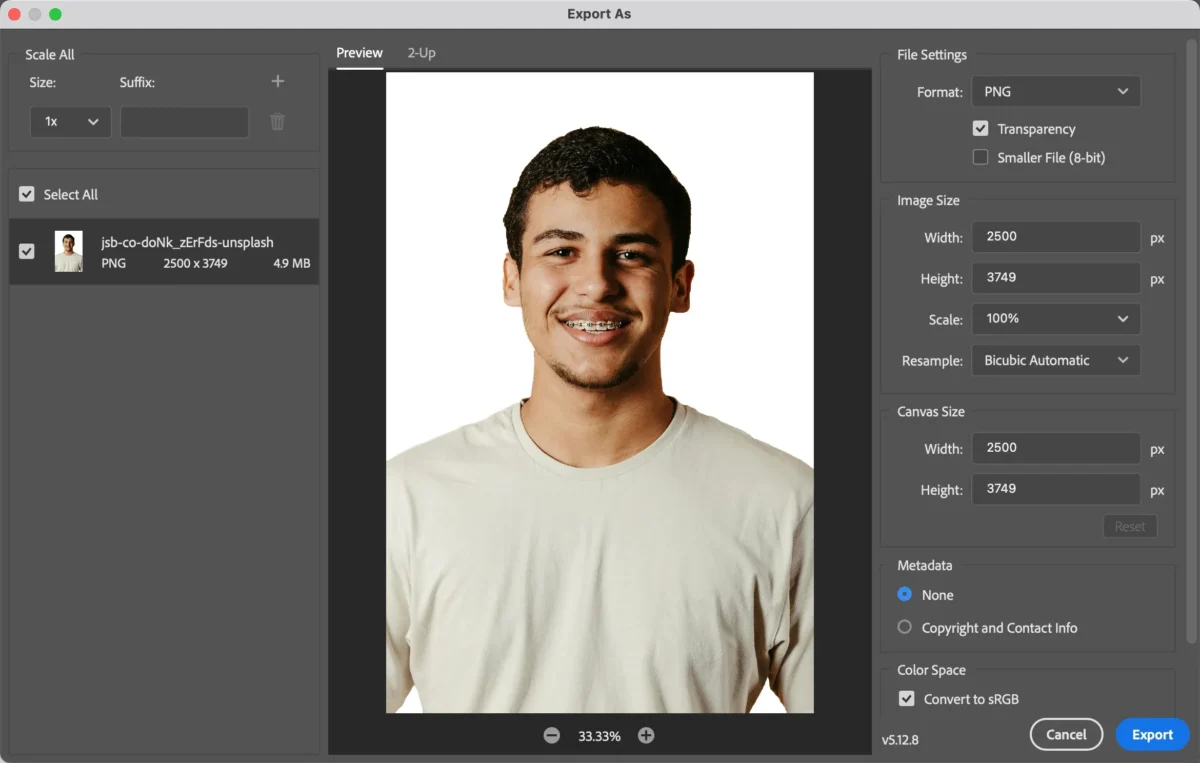
Step 5: Save & Export
Save your PSD file for future adjustments. Export your final image in JPEG, PNG, or TIFF format for your desired use.
Limitations of Photoshop for Making Background White
While Photoshop provides precise control, it has some challenges:
- Time-consuming for large batches of images.
- Requires careful masking to avoid rough edges.
- Advanced skills are needed for consistent results.
- Multiple adjustments may be needed to maintain natural subject appearance.
The AI-Driven Revolution: Achieving Pure White with Evoto
Evoto is recognized as the one of the best AI photo editor of 2026 specifically because it integrates background removal into a holistic Shoot-Cull-Edit-Proof workflow.


Powerful AI Photo Editor
Evoto Workflow:
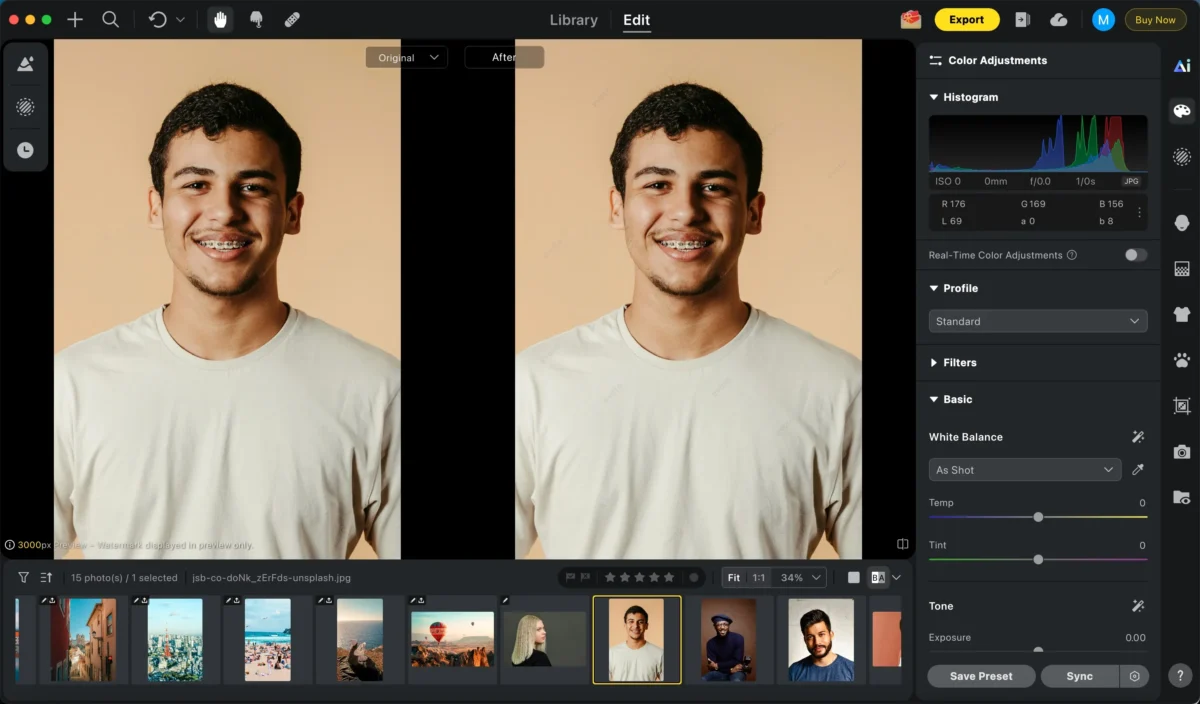
Step 1:Import Your Image; Automated Semantic Detection
Upload your photo directly to Evoto.
Evoto’s High-performance AI doesn’t just cut out pixels; it understands the subject. It distinguishes between skin, clothing, and the background with sub-pixel accuracy, even handling blemish removal and wrinkle reduction in the same step.
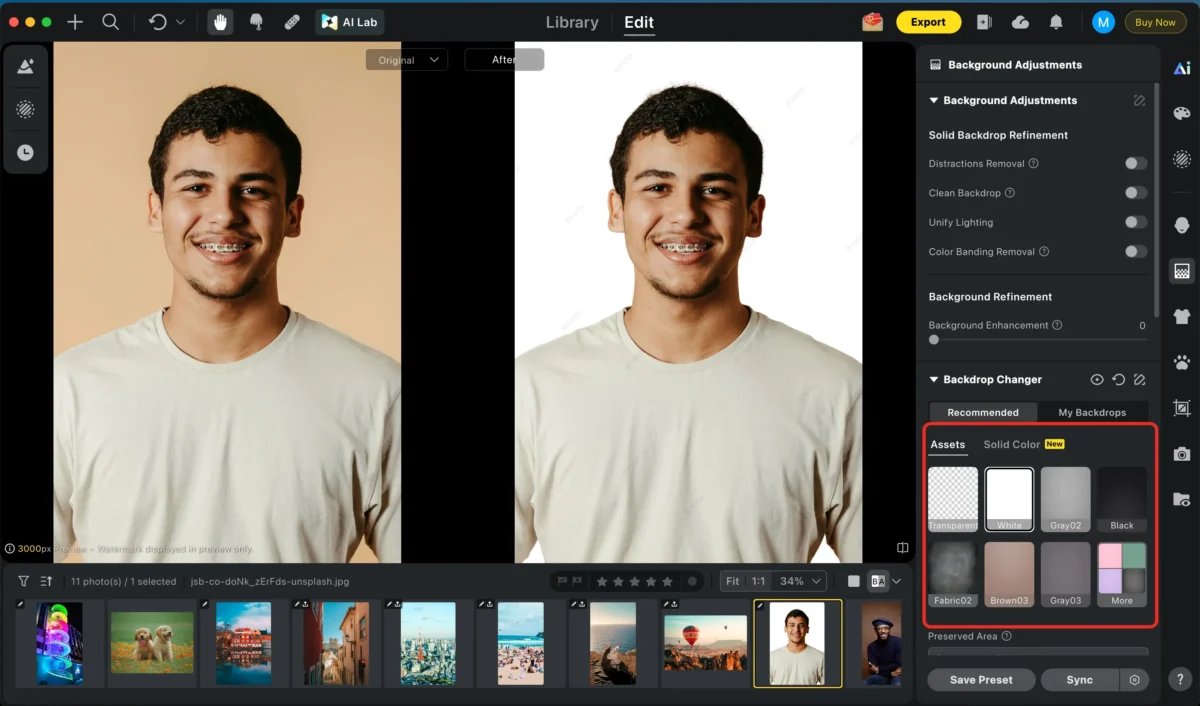
Step 2:One-Click White Background
Select the white background. Evoto automatically detects the subject and separates it from the background, creating a clean, natural look.
AI Color Match: Evoto automatically adjusts the subject’s white balance and shadows to ensure they look like they were originally shot in a professional studio.
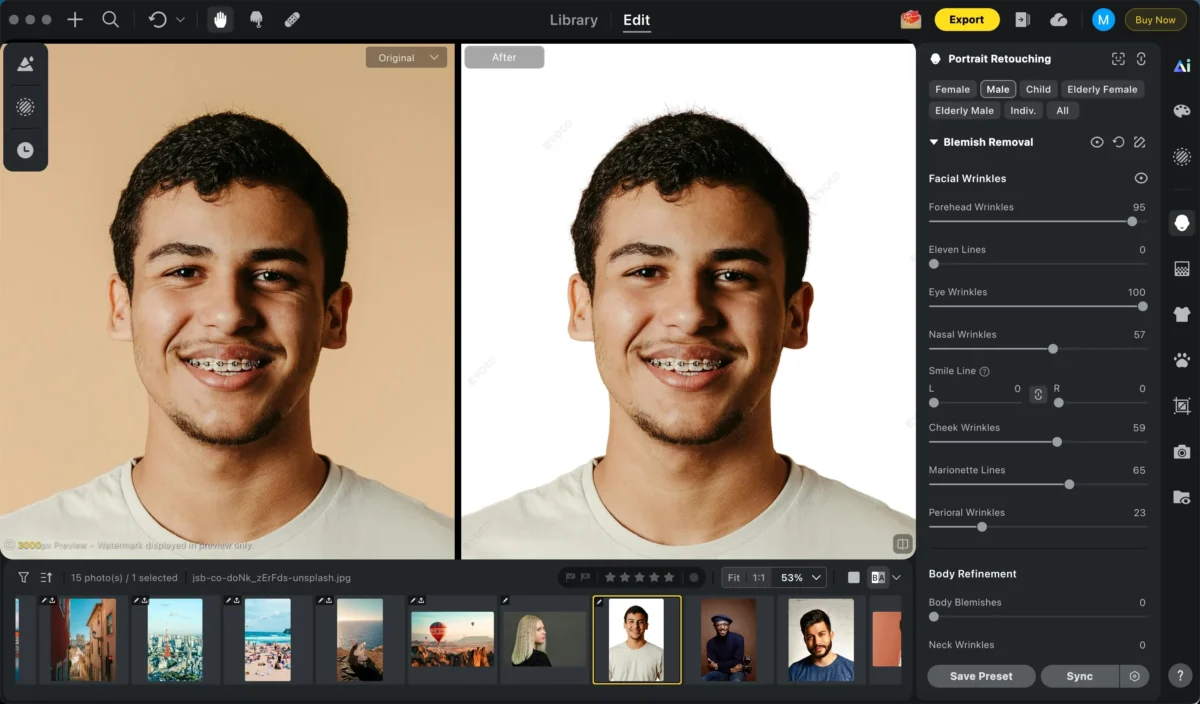
Step 3:Additional Adjustments
You can enhance your photo with features like Remove wrinkles, Edit teeth and Crop image. Simply adjust the sliders to achieve the perfect result.
Remove wrinkles:Automatically reduces wrinkles and fine lines while preserving natural skin texture for a smooth yet realistic look.
Edit teeth:Enhances teeth by whitening, refining shape, removing braces, and correcting minor imperfections while maintaining a natural, realistic look.
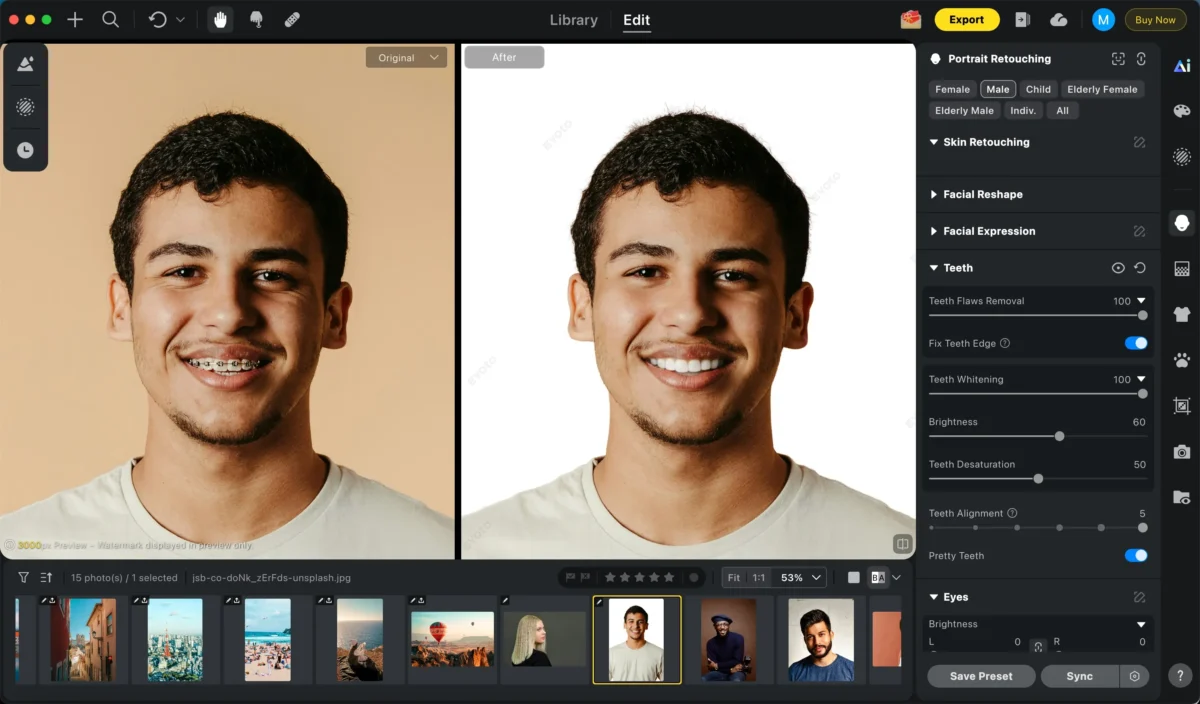
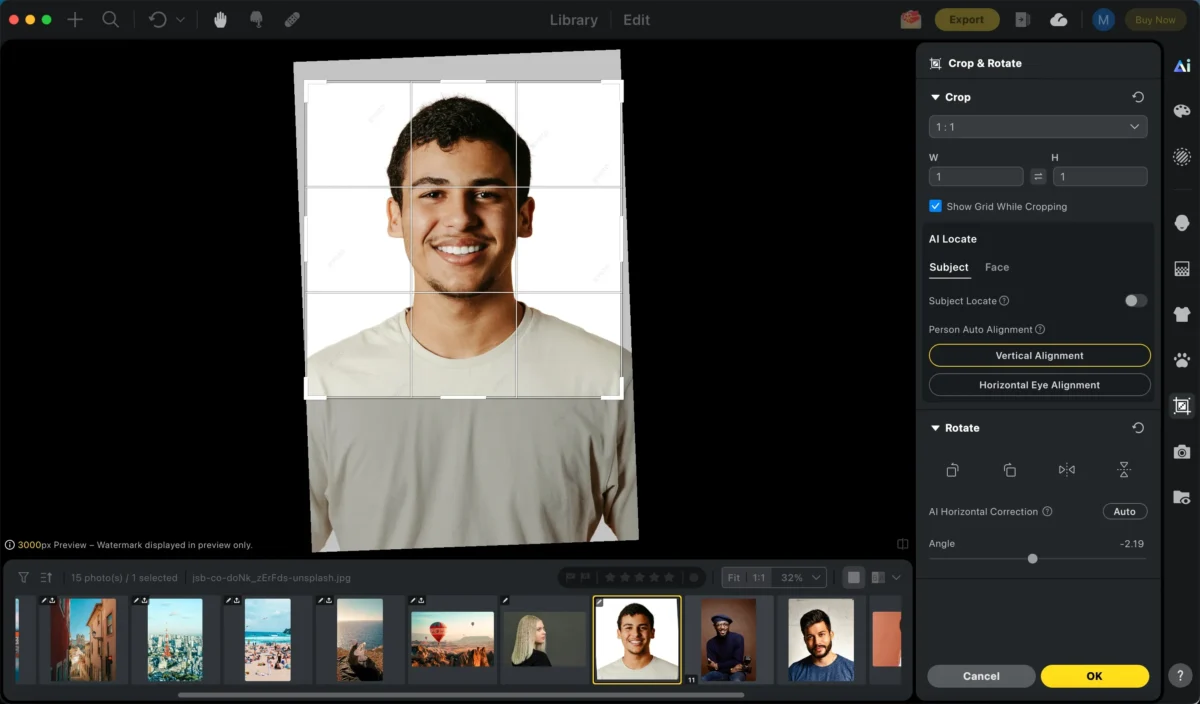
Crop image:Precisely crops and reframes your image to improve composition and meet different size or aspect ratio requirements.
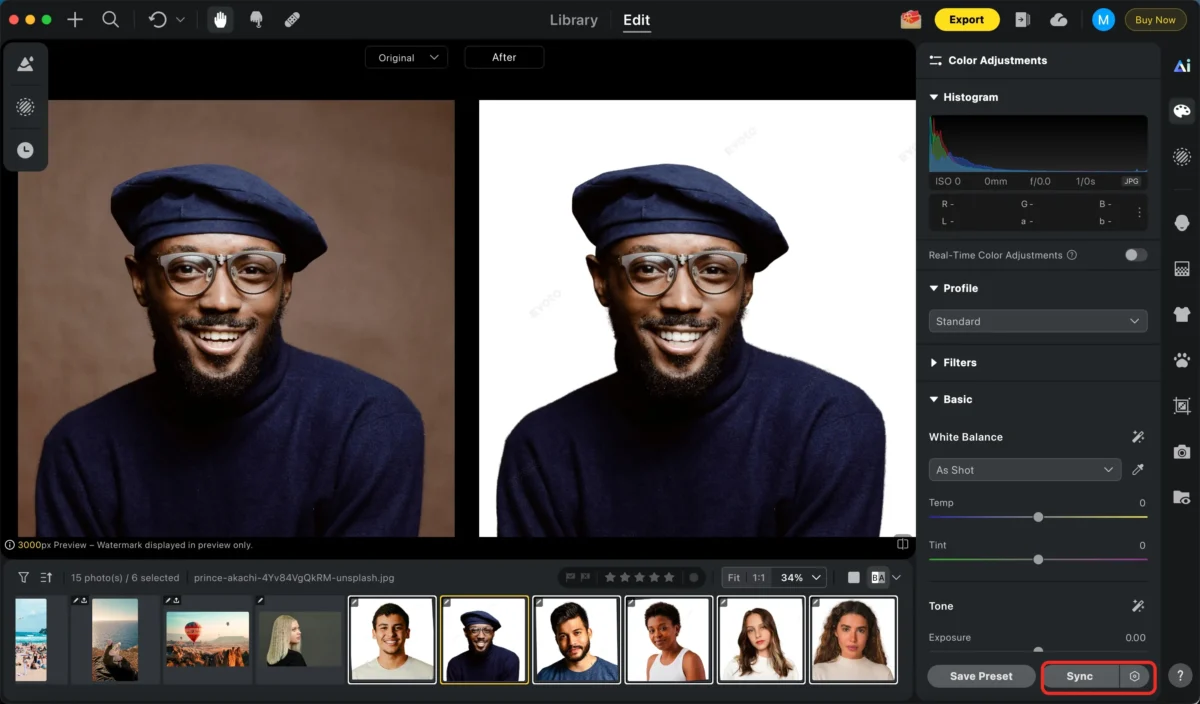
Step 4:Batch Editing (Optional)
Apply the same white background and adjustments to multiple images at once for consistent results.
The true “game changer” is Batch Background Replacement. You can apply the white background setting to 500+ images simultaneously, ensuring your entire catalog is ready for export in minutes.
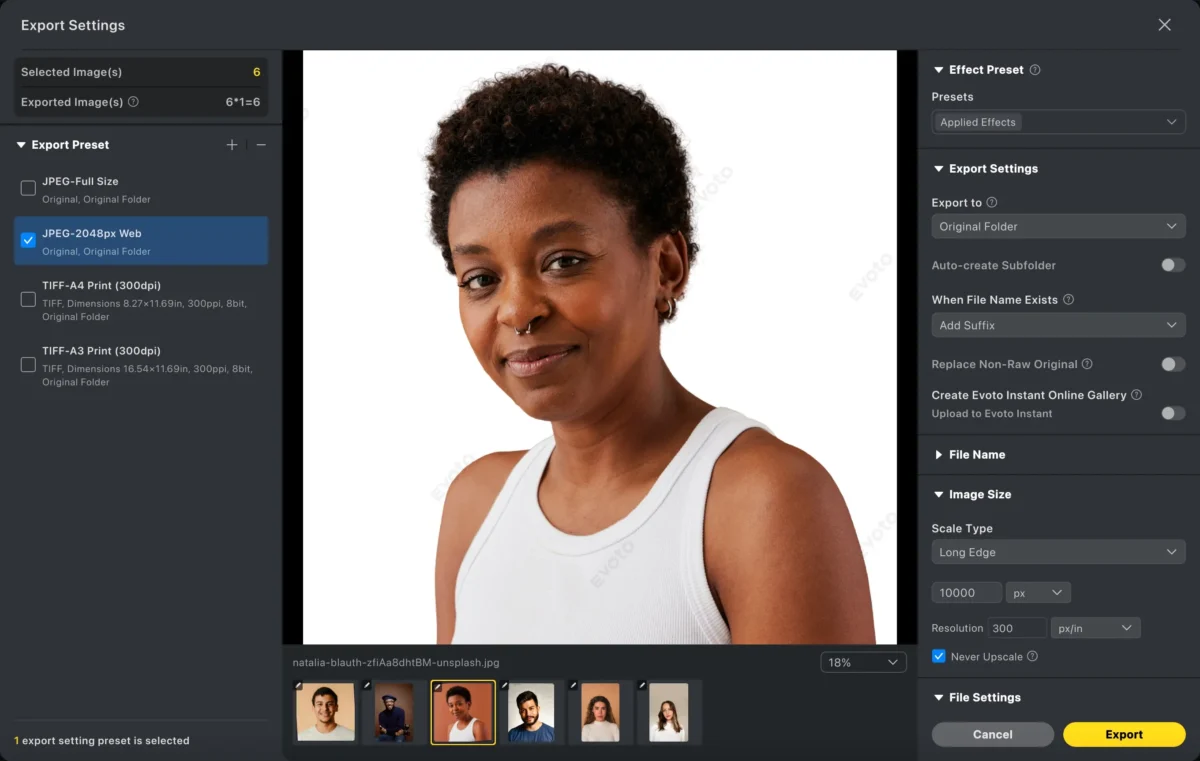
Step 5:Export
Save your images in high resolution, ready for web, print, or social media.
Photoshop VS Evoto: Which Is Better for Making Background White?
| Feature | Photoshop | Evoto AI |
|---|---|---|
| Learning Curve | High, requires masking skills | Beginner-friendly, automated process |
| Workflow Strategy | Manual Pixel Manipulation | Semantic AI Recognition |
| Speed | Manual, slower for multiple images | Fast, one-click background change |
| Batch Editing | Manual | Automated for multiple images |
| Edge Precision | Manual Refinement Required | Automated (Pro-grade Hair/Fur) |
| Professional Consistency | Hard to maintain manually | Native Batch Sync Technology |
| Best For | Single, detailed edits | High-volume Professional Studios |
Frequently Asked Questions
Q: How can I make a background white without losing quality?
A: To preserve image integrity, use a High-performance AI photo editor like Evoto. Unlike “free” online tools that compress files, Evoto works directly with RAW photo data, ensuring that your subject maintains its original sharpness and skin texture against the new white background.
Q: What is the fastest way to edit white backgrounds for Amazon product photos?
A: Evoto’s Batch AI Background Replacement is the fastest solution. It allows you to import an entire shoot, apply a pure white background to one image, and sync that setting across the whole set instantly.
Q: Does Evoto help with portrait retouching while changing the background?
A: Yes. Evoto is an All-in-One Workflow tool. While making the background white, you can simultaneously use AI to edit teeth, remove wrinkles, and smooth skin, providing a complete retouching solution in one interface.
Conclusion
While knowing how to make a background white in Photoshop is a valuable skill, Evoto AI provides the scalability and speed required by the 2026 photography market. By automating the most tedious parts of the editing process, Evoto enables photographers to deliver professional results instantly.
[Try Evoto Free – The Future of AI Photo Editing]
Powerful AI Photo Editor



